Contents
- 1. Getting started — create a company, the four doors, install, sign in
- 2. Staff roles & permissions
- 3. Setting up your company — the setup wizard, what you carry, bringing customers over
- 4. The phone app at a glance
- 5. The field day (techs) — day sheet, readings, photos, repairs, measuring, scanning, site surveys, messages
- 6. Running the office (manager portal) — dashboard, customers, scheduling, requests, leads, monitoring, insights
- 7. Quotes, invoices & getting paid
- 8. Trucks, tools & chemicals on board
- 9. Job teams, contractors & pool builds
- 10. What your homeowners see
- 11. Plans & billing
- 12. Settings reference
- 13. FAQ & tips
1. Getting started
Create your company
Go to routesplash.com/signup, or tap New company? Create one on the app's sign-in screen. Enter your company name, your email and a password. That email becomes the Admin: the owner's login, and the only account that can do everything.
The four doors
RouteSplash has one account per company and four ways in, one for each kind of person:
| Who | Where | What it is for |
|---|---|---|
| Techs (and anyone on the go) | routesplash.com/app or the Android app | The day's route, readings, photos, repairs, trucks, messages |
| The office | routesplash.com/manager | Customers, scheduling, billing, reports, team and settings, on a computer |
| Your homeowners | routesplash.com/portal | Service history, photos, invoices, requests, messages |
| Contractors you work with | routesplash.com/contractors | A free directory listing, plus the jobs they are part of |
Install the app
- Android: download from routesplash.com/download. If Android asks, allow installs from your browser once. The app checks for updates on its own and installs them in place.
- iPhone or a computer: open routesplash.com/app and add it to your home screen. The web app needs a connection. An iPhone app is coming soon; until then, offline work is in the Android app.
Sign in
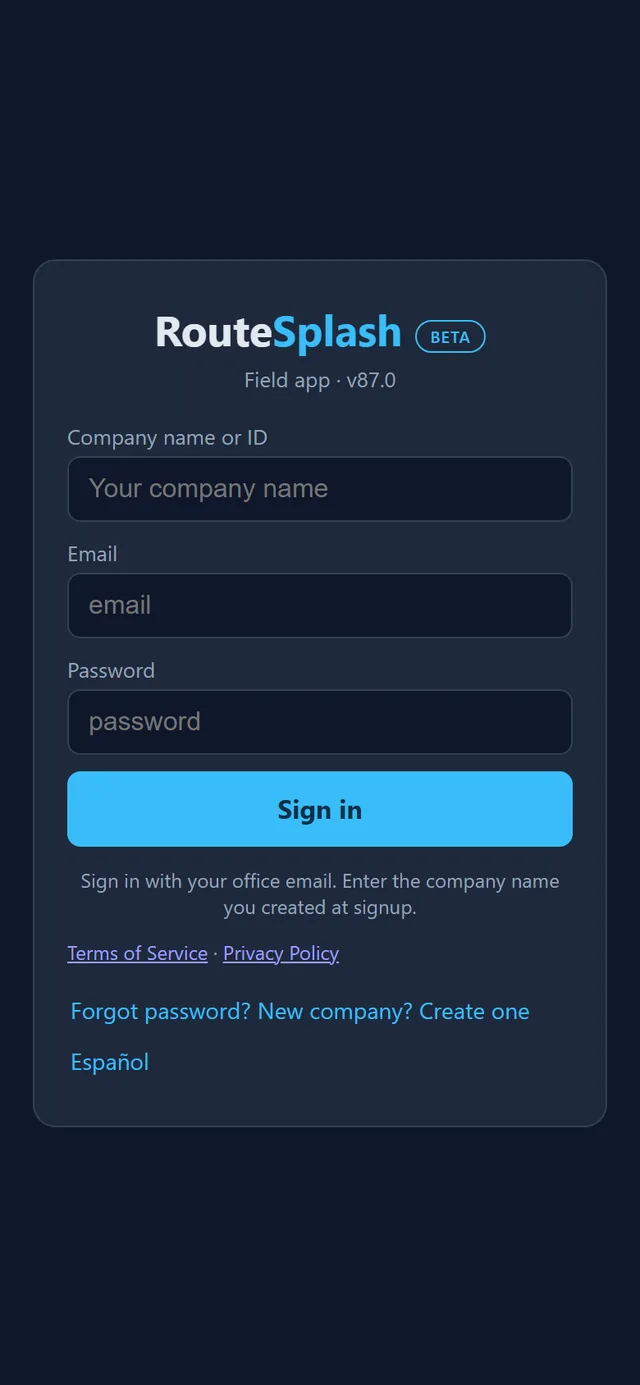
- Company name or ID: the company name exactly as it was created. "Company not found" means the name does not match.
- Email and password: the Admin's from signup, or the sign-in the office made for you.
- Forgot password? sends a reset link to your email. The Admin can also set a new password for anyone on the team.
- Android phones can unlock with fingerprint or face after the first sign-in. The sign-in is stored encrypted on the phone.
- Español switches the whole app to Spanish.
2. Staff roles & permissions
Every person on your team has one of six roles. Each role can do everything the roles below it can, plus more. The app and the portal show each person only the screens their role allows.
| Role | Can do |
|---|---|
| Tech | Their own route: clock in, check in and out, readings, photos, service reports, checklists, problems, repairs they are assigned, their own gear and truck log, messages. |
| Tech Manager | Everything a Tech can, plus everyone's routes and stops. (In the app, switching the Day tab to another tech's routes needs Admin Tech or above.) |
| Admin Tech | Plus dispatch (skip a stop, add a one-time stop, cover a route), trucks and truck weights, and adding or editing customers. Never prices. |
| Manager | Plus the office: billing, customer pricing, routes, staff, requests, contractors, job teams. Sees scorecards without pay. |
| Admin Manager | Plus profit reports, payroll, the price book and company settings. |
| Admin | The owner. Everything, including deleting records, API tokens and platform billing. One per company. |
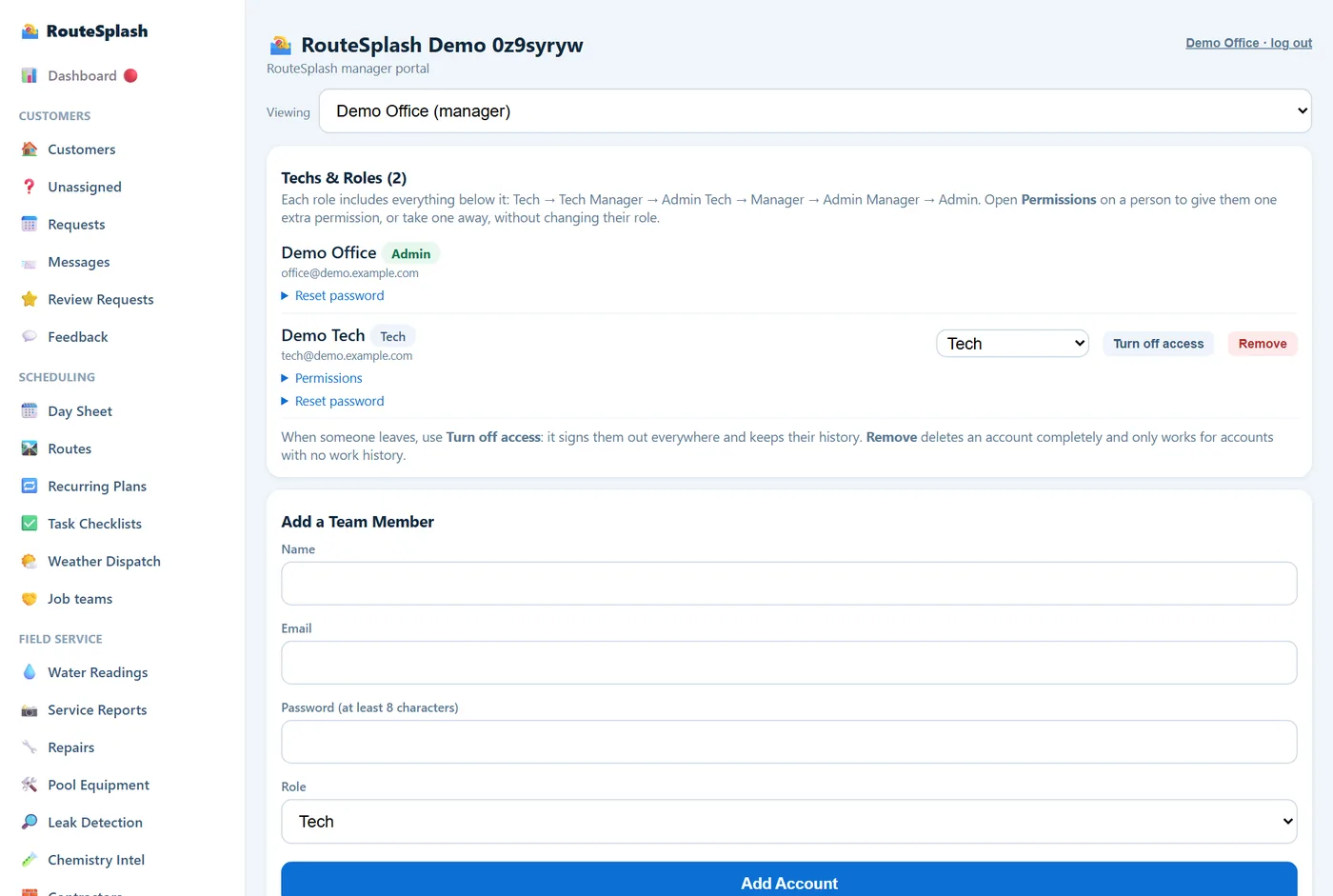
- Change a role: portal → Team, or app → Techs. You can only change people below your own role.
- One-off exceptions: the Admin can give a person one permission their role does not have, or take one away. For example, let one trusted senior tech see prices, or stop one manager from deleting records. Open the person on the Team page and tick the permissions.
- Work type: mark each person Cleaning, Repair / Service, or both. Routes are offered only to cleaning techs and repair jobs only to repair techs, and each person's Home screen shows the matching cards. Not set means both.
- Turn off access: the person stays in your history (visits, readings, pay) but cannot sign in.
- Reset password: the Admin sets a new one. The old password and every old sign-in stop working immediately.
- Role changes take effect the next time the person opens the app. They do not need to sign out.
3. Setting up your company
The setup wizard
The Admin sees the setup wizard at first sign-in. It stays on Home as "Getting set up" until each item is done. The eight steps, in order:
- Company profile: name, office address, contact details
- Chemicals you carry
- Techs: your team and their sign-ins
- Duties & checklists: the tasks stamped at every stop
- Manager privileges: who gets which role
- Routes: service days and which tech runs each
- Customers & equipment
- Costs: labor rate and parts markup
Each step has Mark done and Undo. Steps like "add a customer" or "complete a stop with a reading" tick themselves as you use the app. Hide this guide puts it away; you can bring it back from Settings.
What we carry
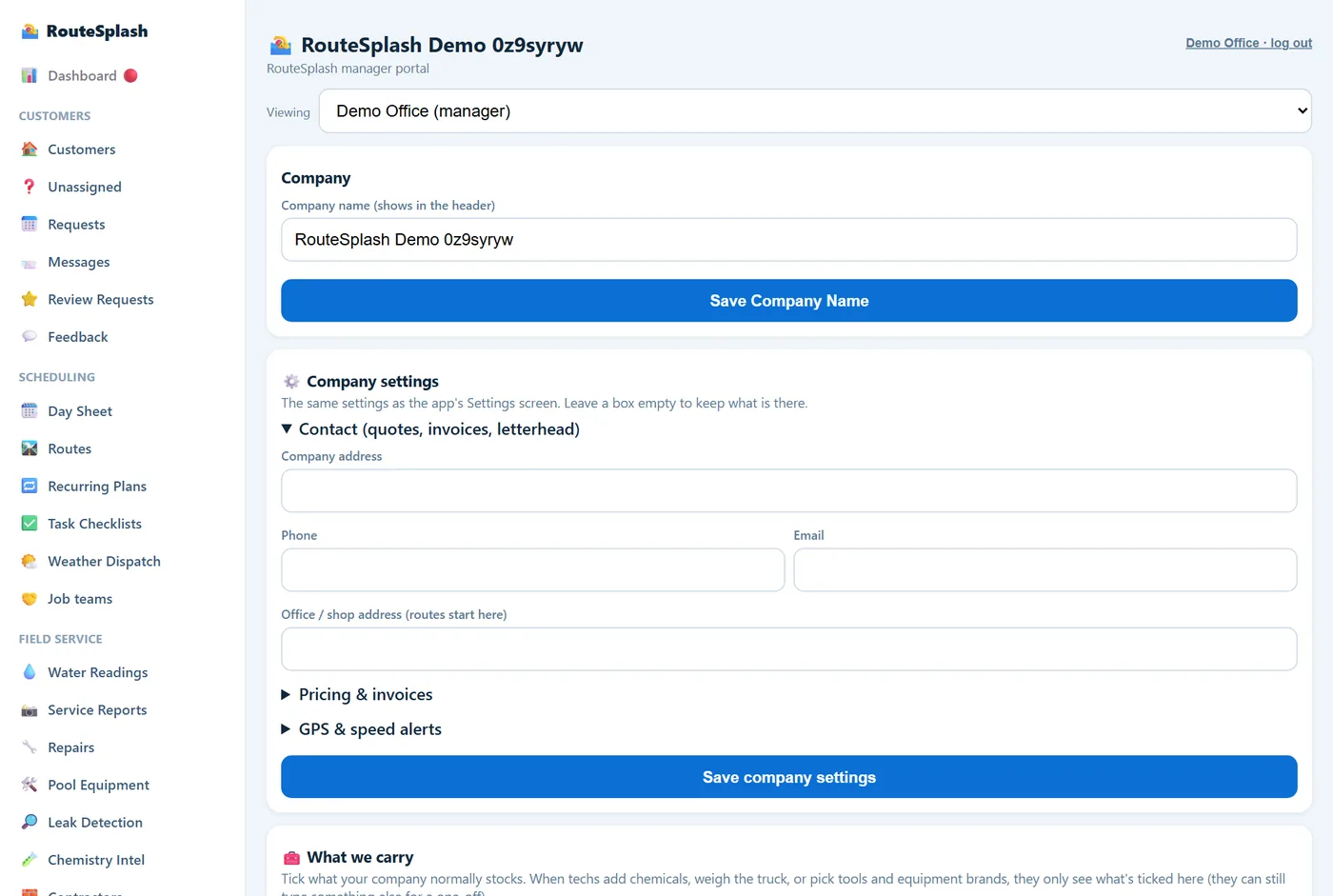
Portal → Settings → What we carry (or app → Settings → Company). Tick the chemicals, tools and equipment brands your company actually uses, and add your own. Every pick-list in the app and portal then shows only those. If you carry liquid chlorine, your techs never scroll past powdered shock; if you only install Pentair and Hayward, those are the brands that appear when adding equipment.
Shared product catalog
Below What we carry is the shared catalog: a list of pool products (name, part number, supplier, brand) built from supplier invoices that RouteSplash companies chose to share. Search it and add items to your price book with your own price, instead of typing part numbers by hand.
- No prices are shared. Each company sets its own.
- No customer information, ever. Before anything is shared, every invoice line that carries a name, address, phone, email, job or PO number is thrown out completely. Only product name, part number, supplier and brand survive.
- Sharing is your choice per upload: a checkbox with the warnings when you import a supplier invoice. If you turn sharing off for your company, you cannot pull from the catalog either, and anything you shared is withdrawn.
Bring your customers over
Portal → Import & Export is the one place for everything coming in or going out: customer import from CSV or Excel, Square and QuickBooks, supplier invoices, and your reports and exports.
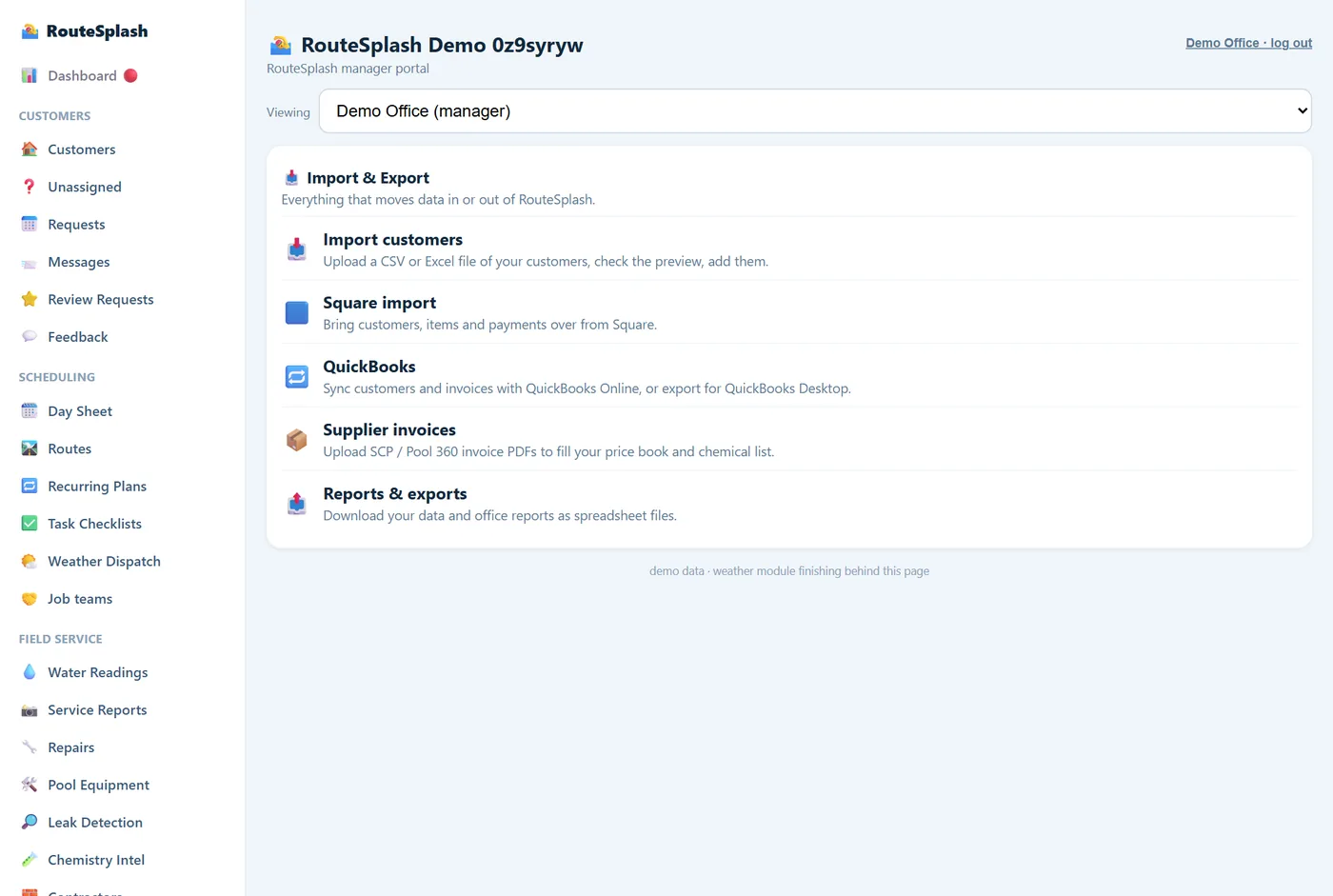
Switching from another product? Switching to RouteSplash walks through the export from each one.
4. The phone app at a glance
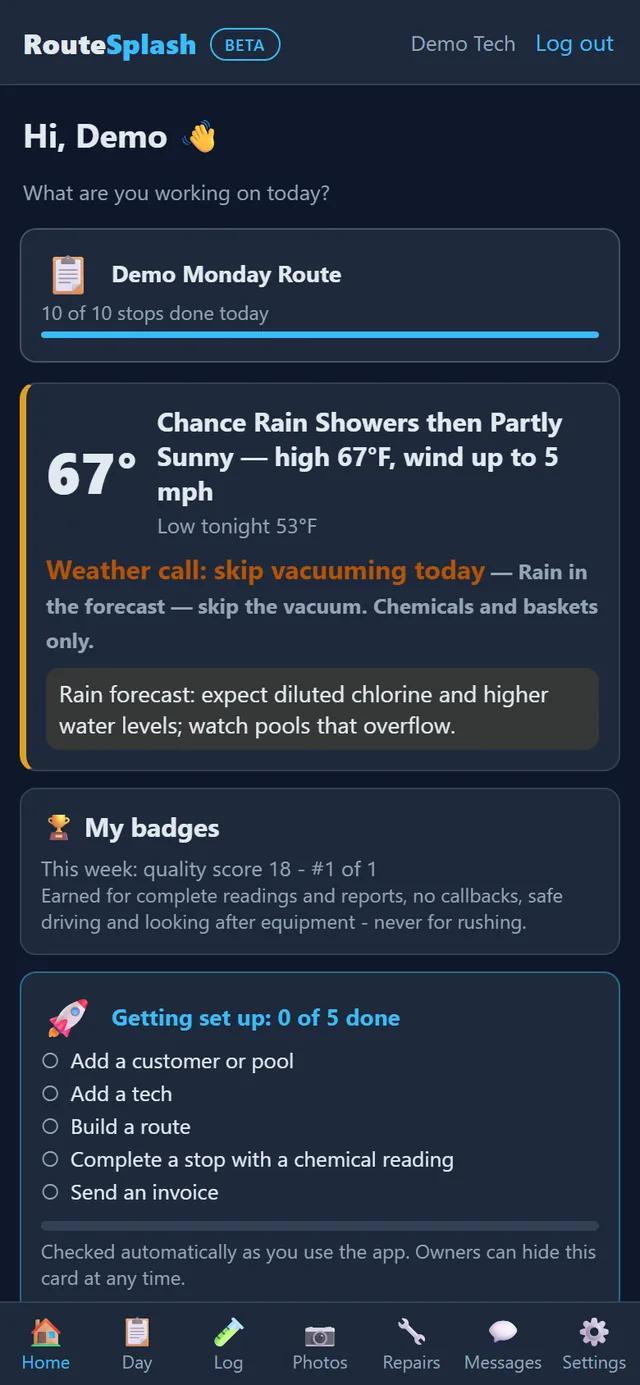
The app has seven tabs along the bottom: Home, Day, Log, Photos, Repairs, Messages, Settings. Everything else opens from a card on Home.
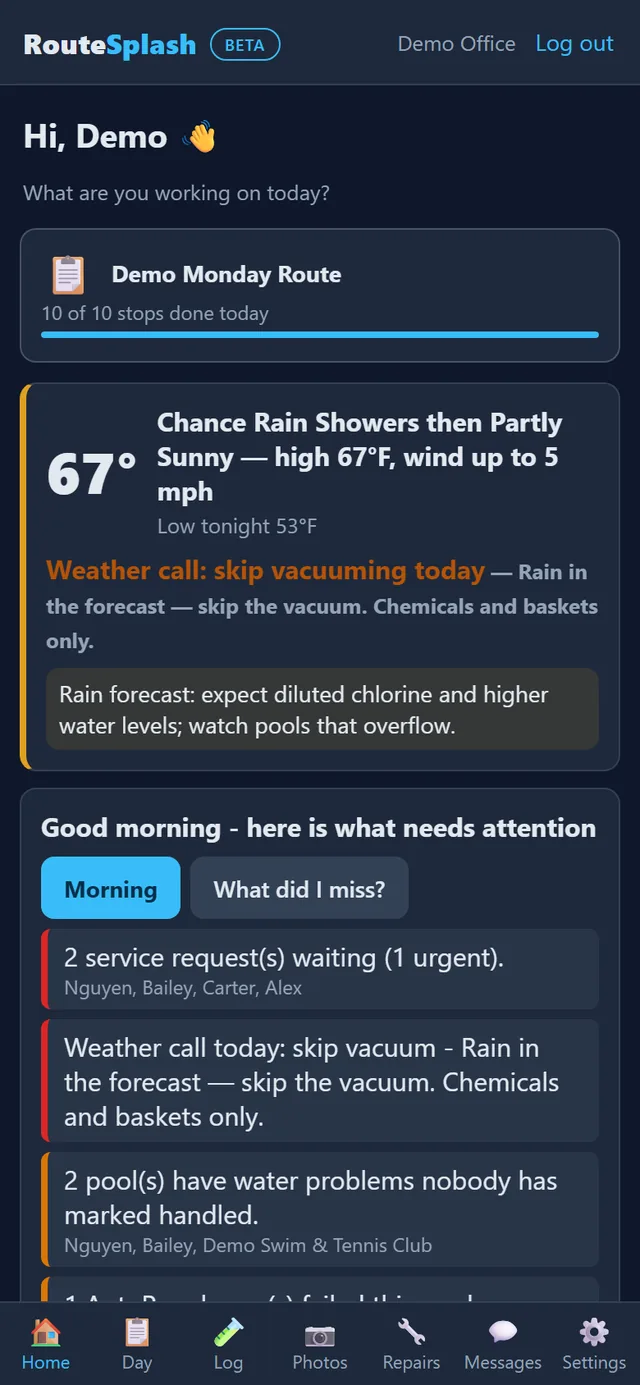
- Today's progress (stops done of total) sits at the top, then the weather card with plain tips: "hot day, expect more chlorine", "rain forecast, skip the vacuum", "freeze tonight".
- Field cards follow your work type: Today's Sheet, Log Chemicals, Truck tools & gear, Effects of Adding, Photos, Repairs, Leak jobs, Quotes, and Job teams (for teams you are on).
- Office tiles (only the ones your role allows) are grouped under Customers, Scheduling, Money and Company: Customers, Routes, Recurring, Techs, Pricing, Invoices, Hours, Due for service, Chem intel, Contractors, Job teams, Reviews, QuickBooks, Import & Export.
- Pull down to refresh. The app re-reads your role and permissions every time it comes to the front.
5. The field day (techs)
⏰ Clock in and pick your truck
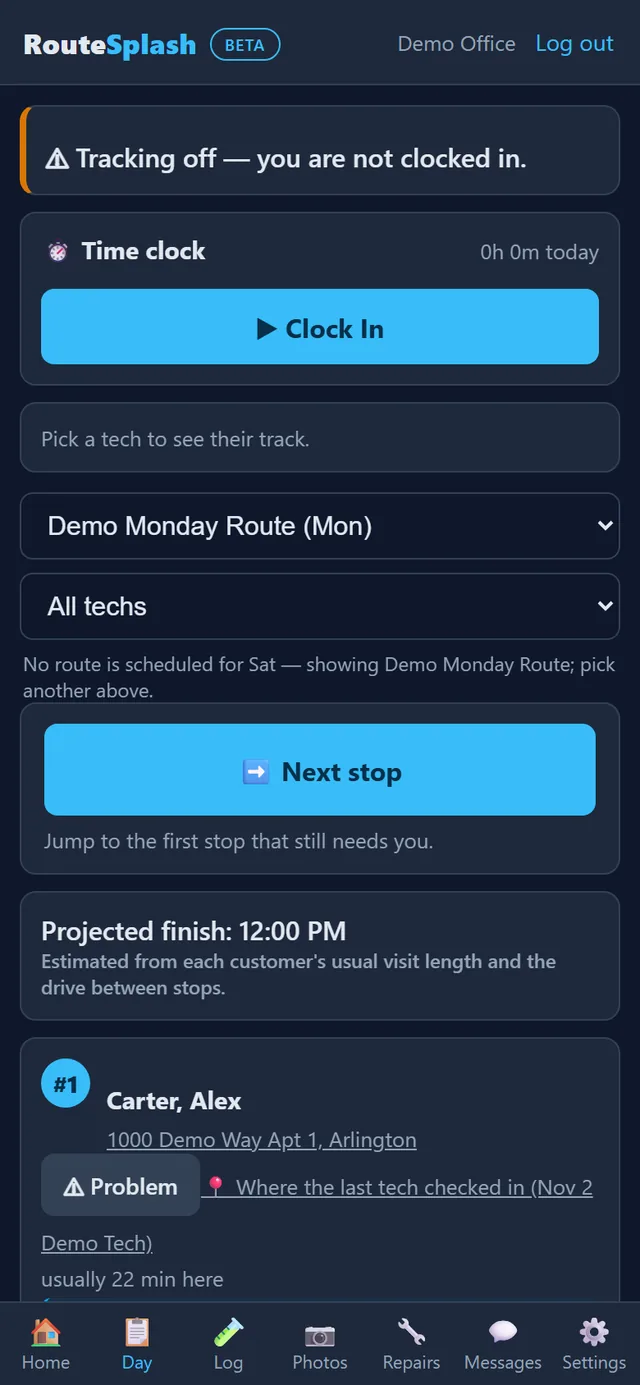
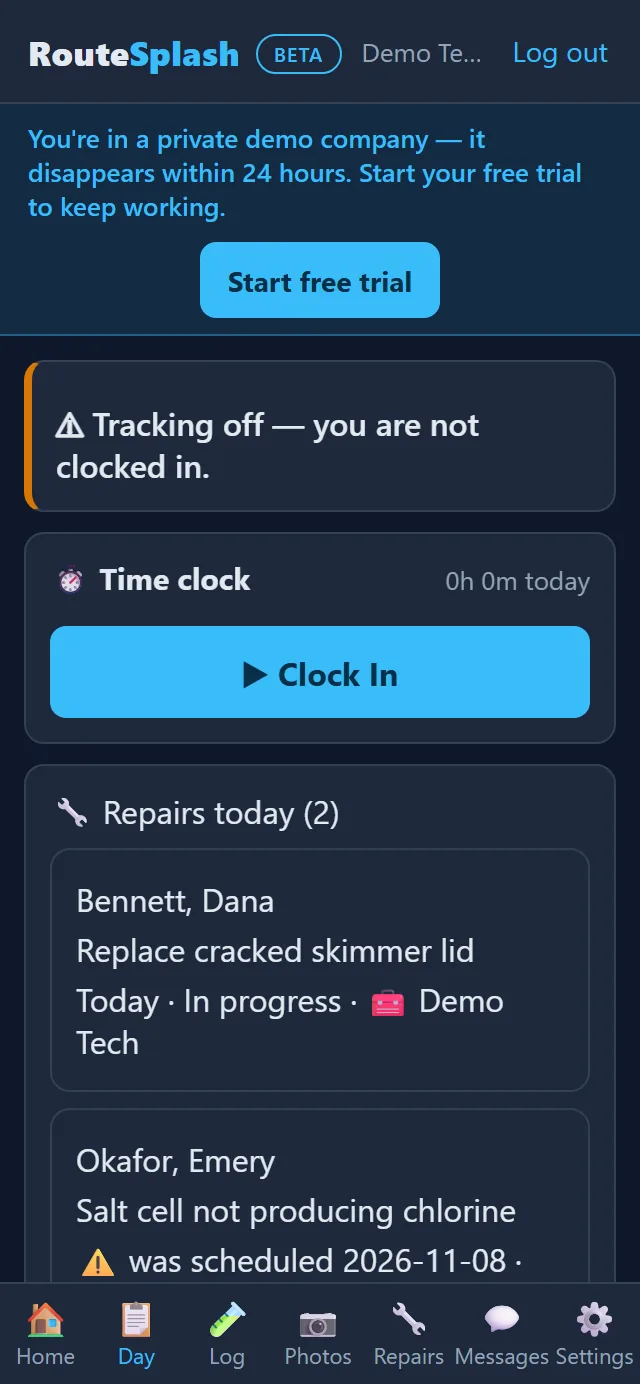
The Day tab starts with the time clock. Clock in, pick your truck number (trucks marked in the shop or broken cannot be picked), and read the last driver's hand-off note and any known issues. Your location is shared with the office map only while you are clocked in; the "Tracking off" line at the top tells you when it is not.
Your own routes first: the Day tab always opens on the routes of the person signed in. Only Admin Tech and above can switch it to another tech's routes. The manager portal still shows team schedules; in the phone app, the signed-in account is the default and only Admin Tech and above can switch to another tech.
📋 Today's Sheet
- Your route with every stop in order. Next stop jumps to the first one still to do.
- Projected finish time, worked out from each customer's usual visit length and the driving between stops, with a warning if you are running late. Each stop shows its estimated arrival and "usually N min here".
- Each stop shows the address (tap it for directions), gate code and access notes, dog and call-ahead flags, and any property alerts such as a locked gate, lawn crew, party or construction.
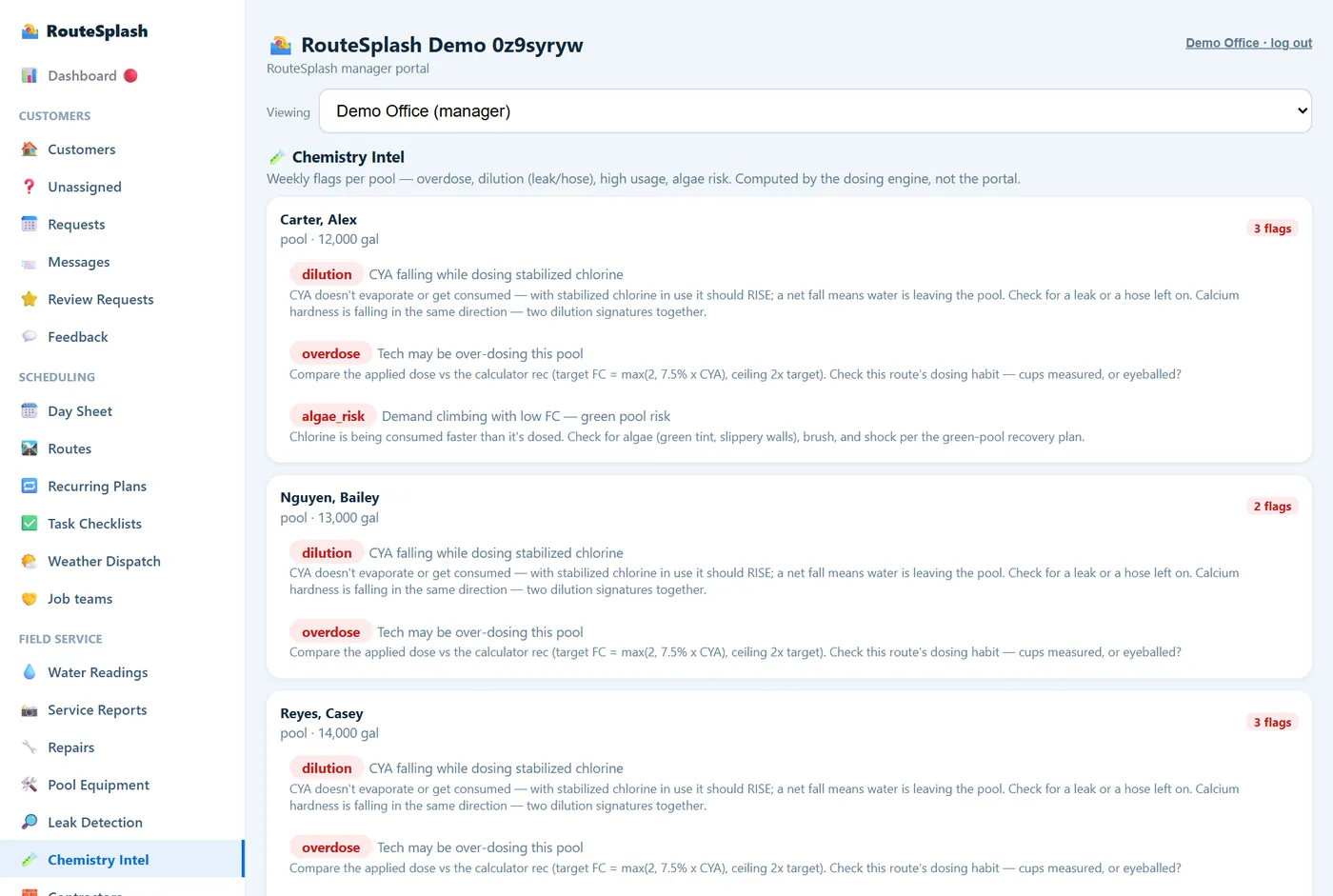
- Pool Detective notes under the stop: chlorine use climbing, a possible leak, last visit out of range, equipment overdue for service, an open repair, a recent customer request. They are built from the pool's own records, so they are specific, not generic.
- Where the last tech checked in opens a map of the previous visit's check-in point. Useful at a house with two gates.
- Tap 📍 Check In on arrival and Check Out when you leave. Both are time-stamped with your GPS location, which proves you were at the pool, and both work offline. Customers who opted in to texts get "your tech has arrived" at check-in.
- Problem on each stop reports an issue to the office (urgent is pre-ticked), or flags something for next time: dog out, gate locked, for today, a week, a month or always.
- Nearby work: if an open job is within 1.5 miles of your last stop, a card lets you offer to take it today.
✅ Checklists
Open the stop's checklist and tap each required task to stamp it with the time. Stamps are live, so do them at the stop. The office sees who did what, per customer, as it happens.
Filter and salt-cell cleans run on autopilot: any filter or salt cell due within 7 days is added to the next visit's checklist by itself. Ticking it marks the equipment serviced and sets its next due date. The office can change the lead time or switch this off.
🧪 Log Chemicals
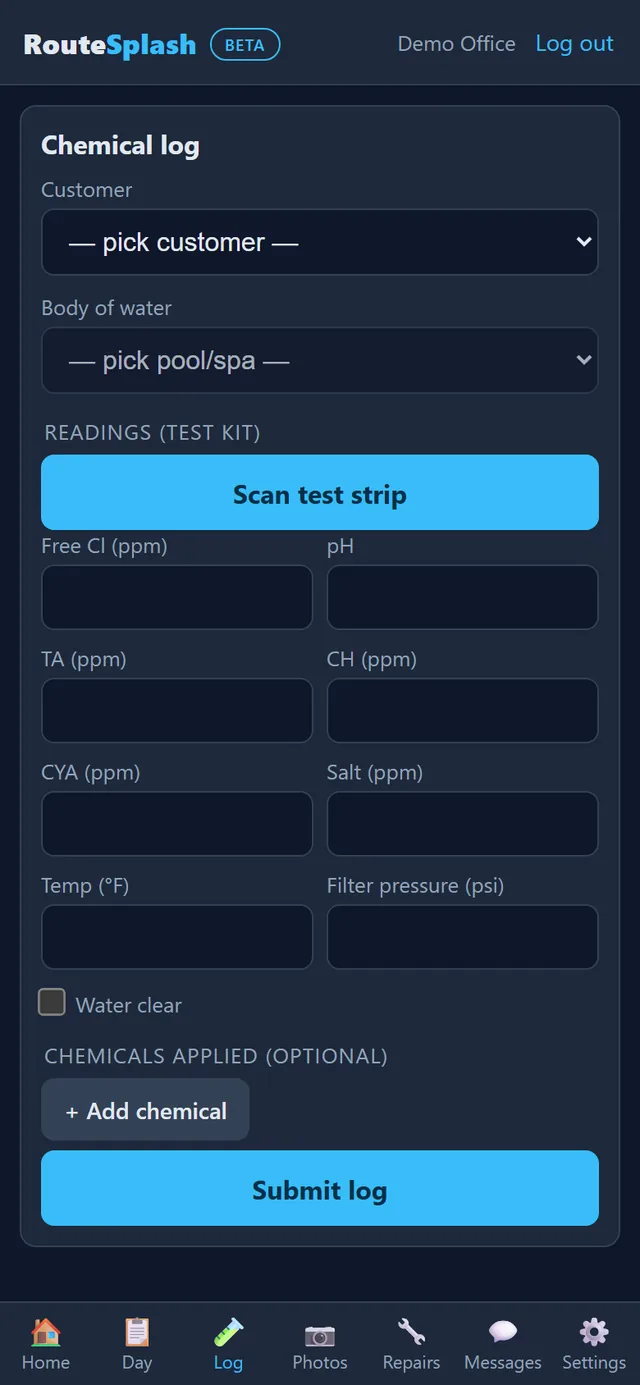
- Pick the customer and pool, then enter the readings: free chlorine, pH, alkalinity, calcium hardness, CYA, salt, temperature and filter pressure. Under "Chemicals applied", the list shows only what your company carries.
- Scan test strip: photograph a dipped strip, tap the two end pads, and the pad colors are matched to the chart. Every value is shown next to its chart color for you to confirm. Values the colors cannot settle are left unticked for you to check by eye.
- Read from Bluetooth meter (Android app, experimental): pair a LaMotte Spin Touch and tap the button to fill the readings from the meter. It has not been checked on real hardware yet, so compare the numbers with the meter's screen before you save.
- Voice: say "free chlorine 3", "pH 7.4" or "add 2 pounds of shock" in English or Spanish. The app shows what it heard before anything is used.
- The LSI badge shows the water's balance: Balanced, Corrosive (eats equipment) or Scaling (crusts surfaces). Add for balance tells you exactly what to add and how much, priced from your own chemical list.
- TX ⚠ flags a reading outside the Texas reference range (FC 1–8, pH 7.0–7.8, CYA ≤ 100). Fix it and log again.
Water history charts each pool's readings over 30 to 365 days. Effects of Adding (a Home card) answers "what happens if I add this?" before you pour.
📷 Photos & service reports
Every finished stop produces a service report the customer can see:
- up to 5 photos with captions; before and after shots are the strongest proof of work there is
- a notes field for what was done and what needs attention
- the customer's signature, captured on your phone
The report link shows the customer the photos, readings, chemicals added, the checklist, and when the tech arrived and left with GPS confirmation. Customers who opted in get a "service done" text with the link. Reports finished without signal send when you are back in range.
🔧 Repairs & 💧 leak jobs
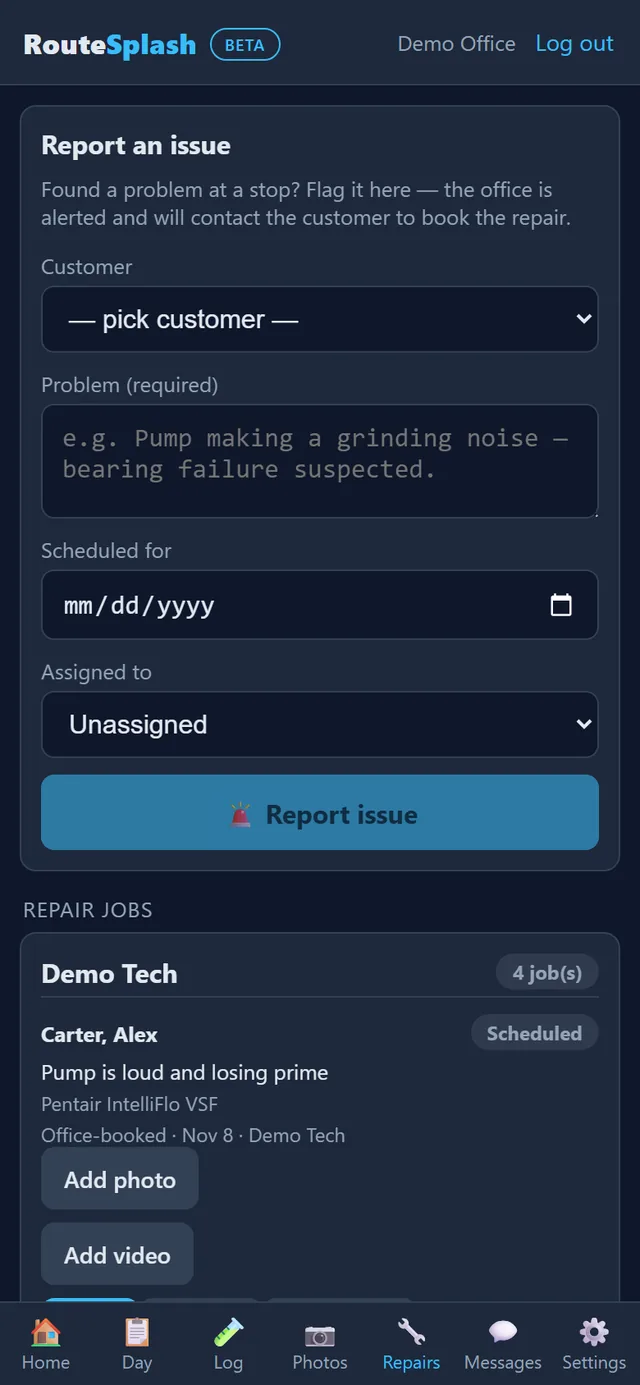
Report an issue from any stop: the office is alerted and books the repair. Repair techs work the job queue: scheduled → in progress → completed, or needs parts → resume, or declined with a note. Photos and video can be attached to a job. A repair the office scheduled for you shows on your Day tab: in a Repairs today card at the top (with a Coming up list for the next two weeks, and a Look ahead button that lists any later day's stops in order; picking another day's route in the route picker shows that route's next day, so a repair added for Wednesday can be seen before Wednesday), and on the day itself as a stop with a 🔧 Repair today note. If the repair customer is not already on your route that day, it is added to your stops for that day. If they are already on it, no extra stop is made: the note is added to their stop and the job stays in Repairs. Tap the job to Start it. If you must come back with a part, tap Needs parts, say which part and pick a return date: it comes off today and goes on your stops for the return day. When the work is done, Complete it with what was done, hours and parts cost, then a manager can Bill this job right there. A completed repair stamps a 1-year warranty on that piece of equipment. Leak jobs record the findings, repair notes and the customer's decision on the pool.
📏 Measure a pool
On the customer screen, Measure pool offers two ways:
- On site: walk the corners with the camera (Android phones with AR support). Aim the crosshair at each corner where the deck meets the water and tap Add point; on a curved pool add a point every few feet.
- From an aerial photo: tap the pool, then its corners. This is rough, about 3 feet per side, so use it for quotes, not for dosing.
Either way you get length × width, surface area and perimeter, and gallons from the depth you pick (presets like 3.5 to 6 ft, or type your own). Gallons already on file are never overwritten by an aerial estimate.
🔊 Voice notes
Instead of typing a note, tap the microphone on the log screen and speak it. The phone transcribes it on the device (the audio never leaves the phone) in English or Spanish, and it is saved with the reading.
📍 Automatic check-in & check-out
When a tech with the Android app arrives and leaves a stop, the app checks in and out on its own using a geofence around the property. Each stop card shows how far away the tech is, so they know when they are close enough. No extra taps — the day sheet records itself.
🌡 Equipment & freeze reminders
Equipment past its typical life, or due for service, is flagged so it is not missed. When a freeze is forecast, the office and techs are warned ahead of time so pumps and heaters are protected.
🏅 My badges & the quality board
Badges come from what the app already records and reward quality, never speed: pools completed (100, 250, 500, 1,000), zero-callback champion, clean sweep (readings and reports filed every time), safe driver (no speed alerts), equipment detective, green pool slayer, gear keeper. The weekly quality board scores readings and reports filed, minus complaints and speed alerts.
🏷 Scan a product label
Point the phone at a barcode to put equipment on a customer's record without typing. On a stop card tap Attach equipment (or use Scan a product on Home). RouteSplash first looks the code up in your own price book by supplier part number, then in a free public product database. You confirm the type, model and serial number and it saves to that customer's equipment list. Nothing is guessed: if a code is not found, you type the details yourself.
🗺 Site survey (yard walk-through)
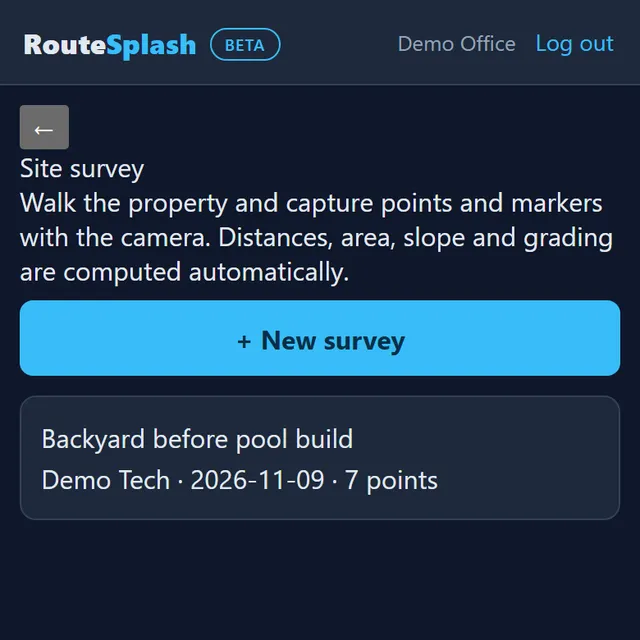
Walk a property and RouteSplash turns it into a plan. Open it from the customer screen, a stop card, or Customers → Manage → Site survey, then tap New survey. Capturing uses the camera on Android phones with AR support: aim and tap to drop a point at each corner, and add markers for things you must not dig into. There are eleven kinds: utility, sprinkler, valve, drain, electrical, gas, water meter, tree, fence, structure and other.
- Distances between points, the area of the outline (only the plain corner points count, never the markers), slope in percent between points, and the height of every point compared with the first.
- A top-down plan view colors each marker by kind. If the survey has a GPS position you can open it on a map, and an aerial photo can sit underneath the plan.
- Surveys can be attached to a job team, for example the yard survey before a pool build.
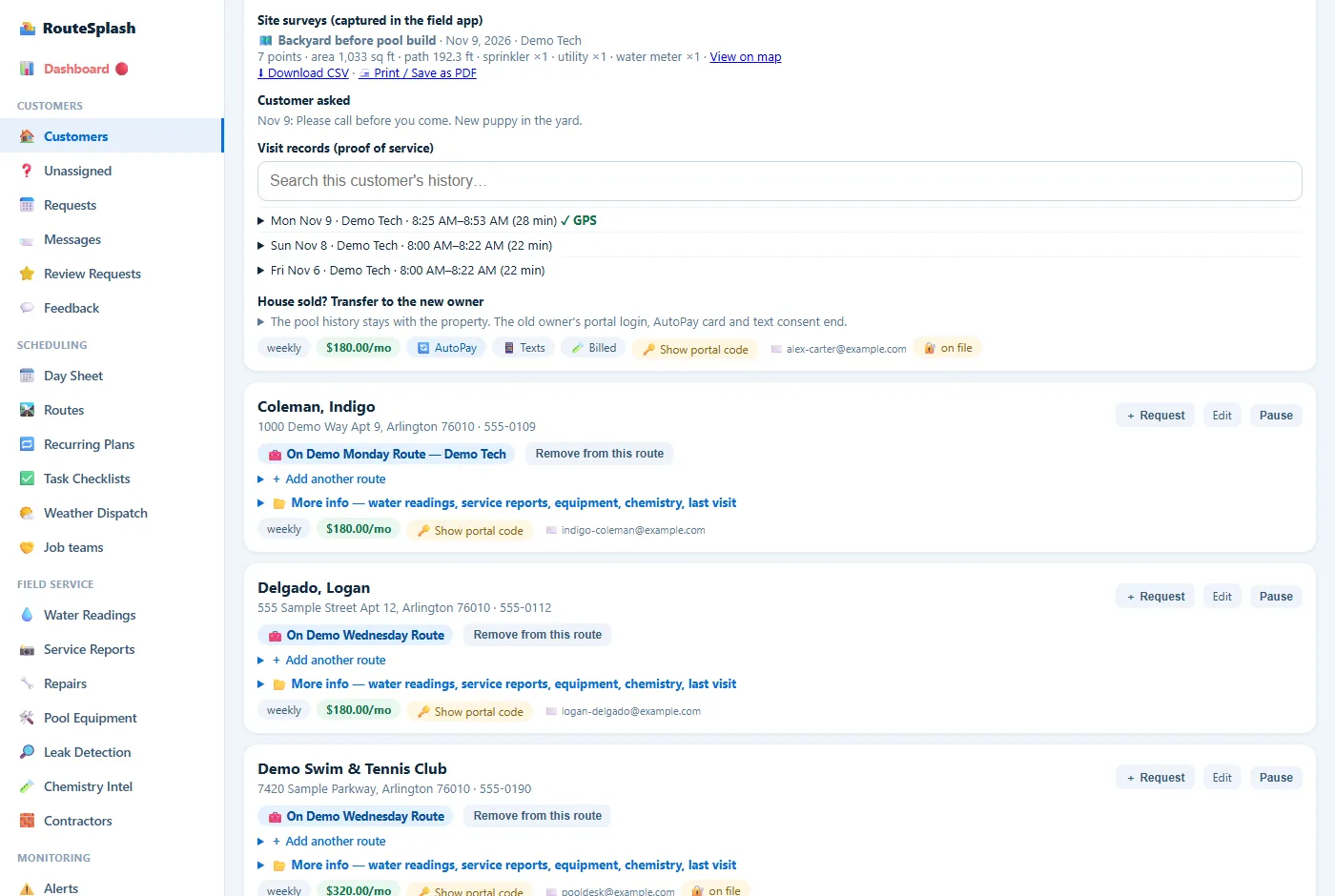
- The office sees every survey on the customer's page in the manager portal (name, who captured it, points, area, path length, markers). Capturing needs the Android app; saved surveys can be looked at from any device.
- Export: open a saved survey and use Download CSV (every point with its position, height, marker, GPS, and the distance and slope to the next point; opens in Excel or Google Sheets) or Print / PDF (a printable plan with the drawing, the measurements and a table of points; tap Print / Save as PDF on that page to save it as a PDF). The same two links are on each survey in the customer's Site surveys section in the manager portal. The links work for 30 days and open without a login, so you can send one to a builder or a customer.
🔌 Open the customer's pool controller
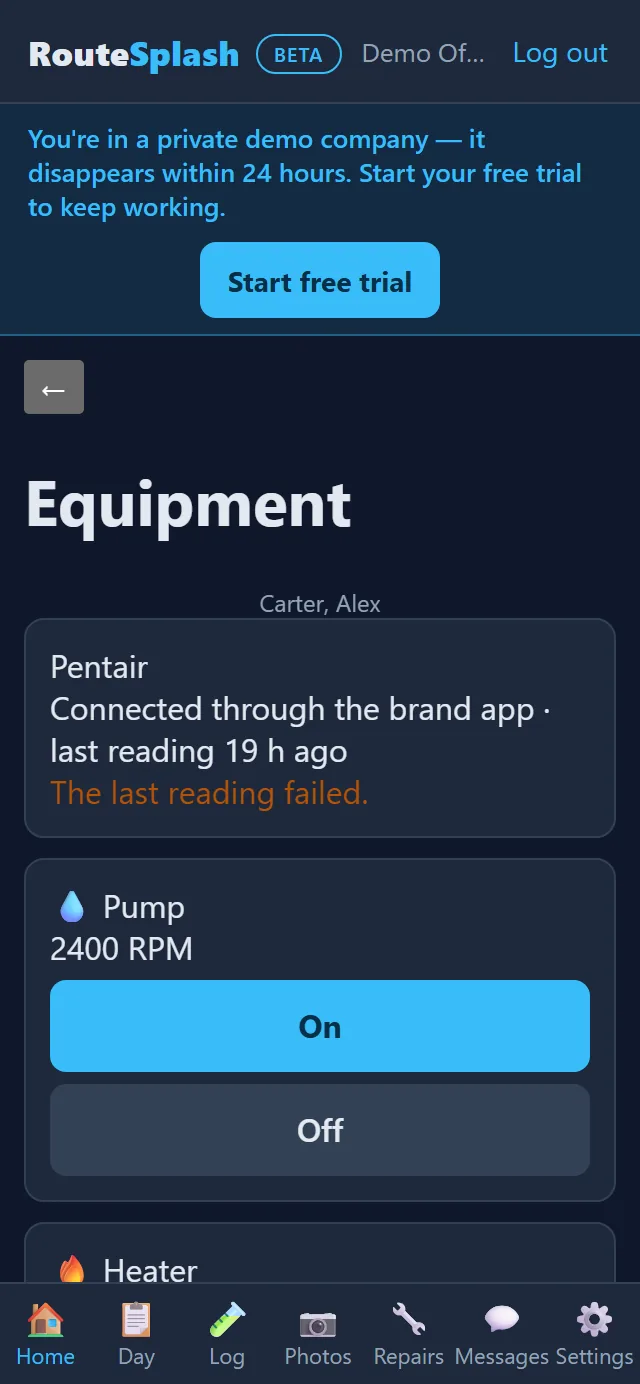
From a stop you can jump straight into the customer's pool automation — Pentair IntelliCenter, Hayward OmniLogic or Jandy iAqualink — without hunting for the vendor app. Opening the controller stores nothing. (The optional 24/7 equipment monitoring is separate: it keeps the homeowner's pool-equipment account login encrypted, and only after they opt in.)
⚙️ Equipment settings from the stop card
Each stop card has one Equipment button, whatever the brand. RouteSplash works out the brand itself (from the customer's 24/7 monitoring sign-up, or else their equipment list) and only asks Which brand? when nothing is on file.
- Settings, in plain words: Pump (On, Off, and a speed: Low, Medium, High or a number), Heater (On, Off, temperature), Salt cell (output %) and Super-chlorinate. Only the settings that brand supports are shown: Jandy pumps take a speed in RPM, Hayward in percent, Pentair has pump on/off, heater and salt.
- The screen shows the latest reading (pump speed, water temperature, salt) and when it was taken.
- Every change asks you to confirm first and is written to a log. If the brand refuses (for example the customer changed their login, or the system is offline) you get a plain message and nothing is changed.
- It works when the customer is opted in to 24/7 monitoring (the office does this under Equipment alerts → Opt a customer in, with the system or serial number for Pentair and Jandy). Techs can use it for customers on their own routes.
- Connect at the pump (Android app, experimental): for Pentair and Jandy pumps you can also connect while standing at the pump, by Bluetooth or (Jandy) the pump's own WiFi, with no internet link needed. Only the ways that brand has are shown. Pentair supports Bluetooth; Jandy supports pump WiFi and Bluetooth pairing. Jandy commands use pump WiFi, not Bluetooth writes. Hayward local control is not available; its controls use the cloud connection.
💬 Messages
One conversation system for the office, techs and homeowners. Start a thread with the office or a teammate; a homeowner's message reaches both the office and their tech. In the Android app, messages sent without signal go out when you are back in range.
6. Running the office (manager portal)
The manager portal is at routesplash.com/manager, built for a computer screen. The left menu has six fold-out sections: Customers, Scheduling, Field Service, Monitoring, Money and Company (Money holds billing as well as costs and insights). Click a section name to open or close it; the section of the page you are on stays open, and the ones you open stay open as you move around. Pin the pages you use most: hover over a page in the menu and click the ☆ star, and it shows under ★ Pinned at the top. Click the star again to unpin. Pins belong to you and that computer's browser, so each person keeps their own. At the bottom, Help opens this Operator Manual and How it works in a new tab. On a phone, the same pages open from Home and More.
Dashboard & Morning Briefing
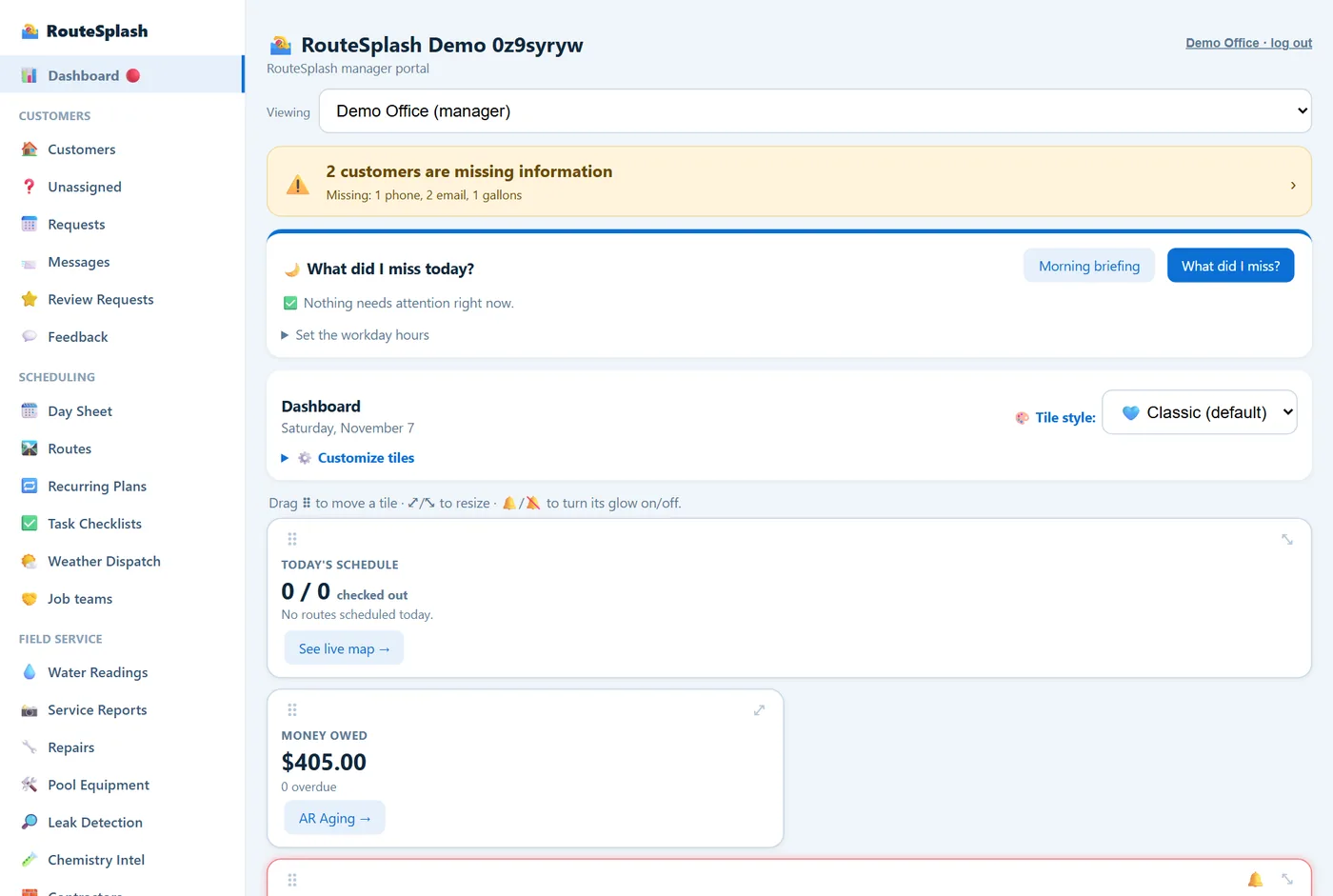
The card at the top switches between Morning briefing and What did I miss. It lists, with a link to the page that fixes each one:
- late routes and techs not clocked in
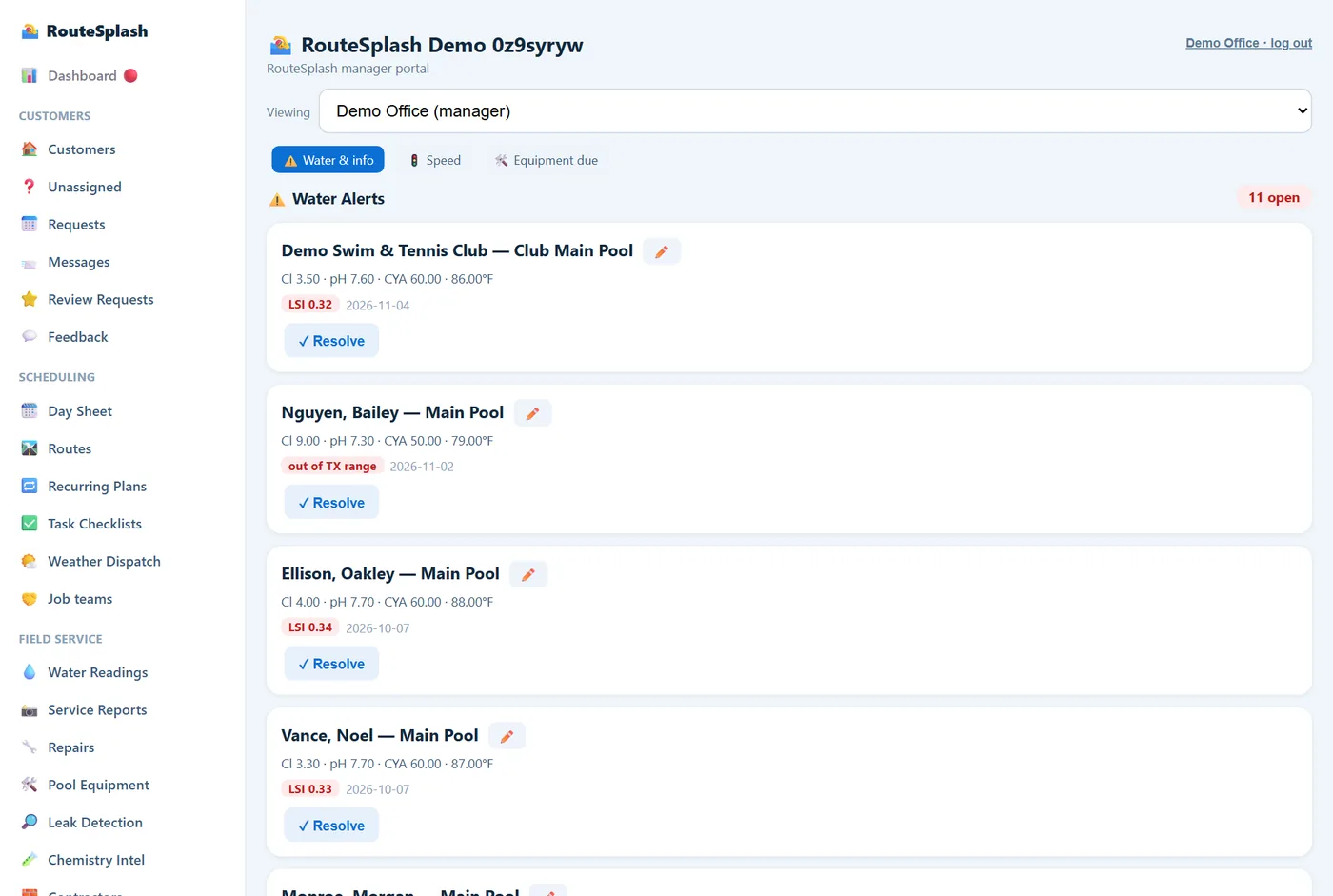
- water problems nobody has handled
- waiting requests and unanswered homeowner messages
- overdue invoices and failed AutoPay
- quotes with no answer
- stops left unfinished, and visits with no reading or no report
- customers likely to call back, with the reasons
- the weather call for the day
- revenue left on the table, and the day's projected finish time with per-stop ETAs
Below it, the dashboard tiles are yours to arrange: drag to reorder, resize, switch tiles on or off under Customize tiles, and mute a tile's alert glow one tile at a time. A tile that needs attention lights up.
Customers
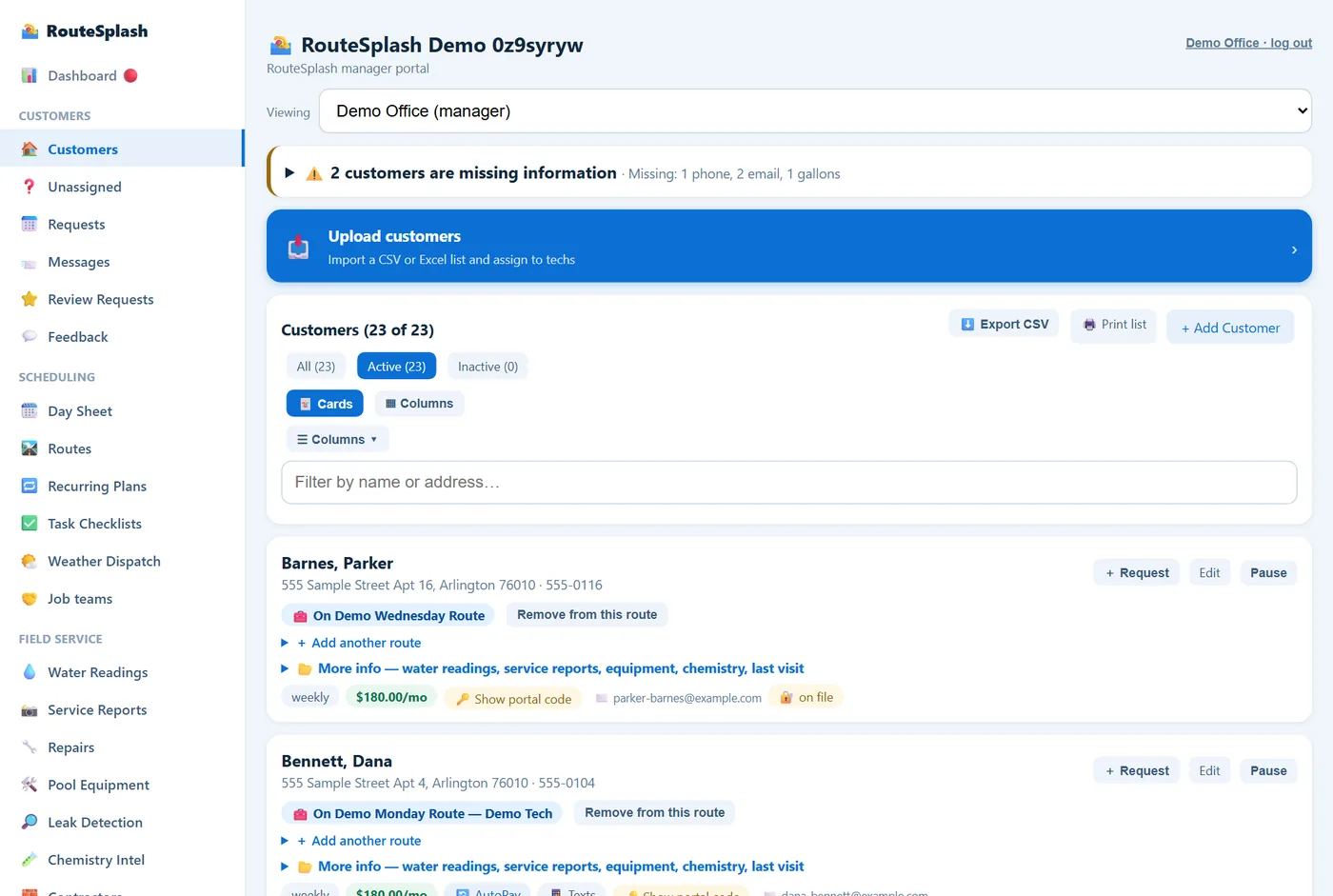
- Add or edit a customer, their pools (type, gallons, surface, salt or chlorine) and equipment (make, model, serial, install date, service history, warranty) from the list, or with the pencil on any page that shows a customer.
- Flags on the list tell you what needs fixing: also on another route, address not found or no address on file (the customer cannot be mapped, routed or measured until it is fixed), possible duplicate record (nothing is merged automatically), inactive.
- Cards or Columns: switch between a card per customer and a table. In the Columns table, click anywhere on a customer's row (not the checkbox or the Actions buttons) and their card opens in a panel over the table, with More info already open. Close it with ✕ Close, Esc, or a click outside it, and you are back at the same spot in the list.
- The banner at the top counts customers missing a phone, email or gallons, so the record gets completed over time.
- Export CSV downloads the list as a spreadsheet; Print list prints it.
- Pause a customer for a vacation or the off season; the slot frees up on your plan right away.
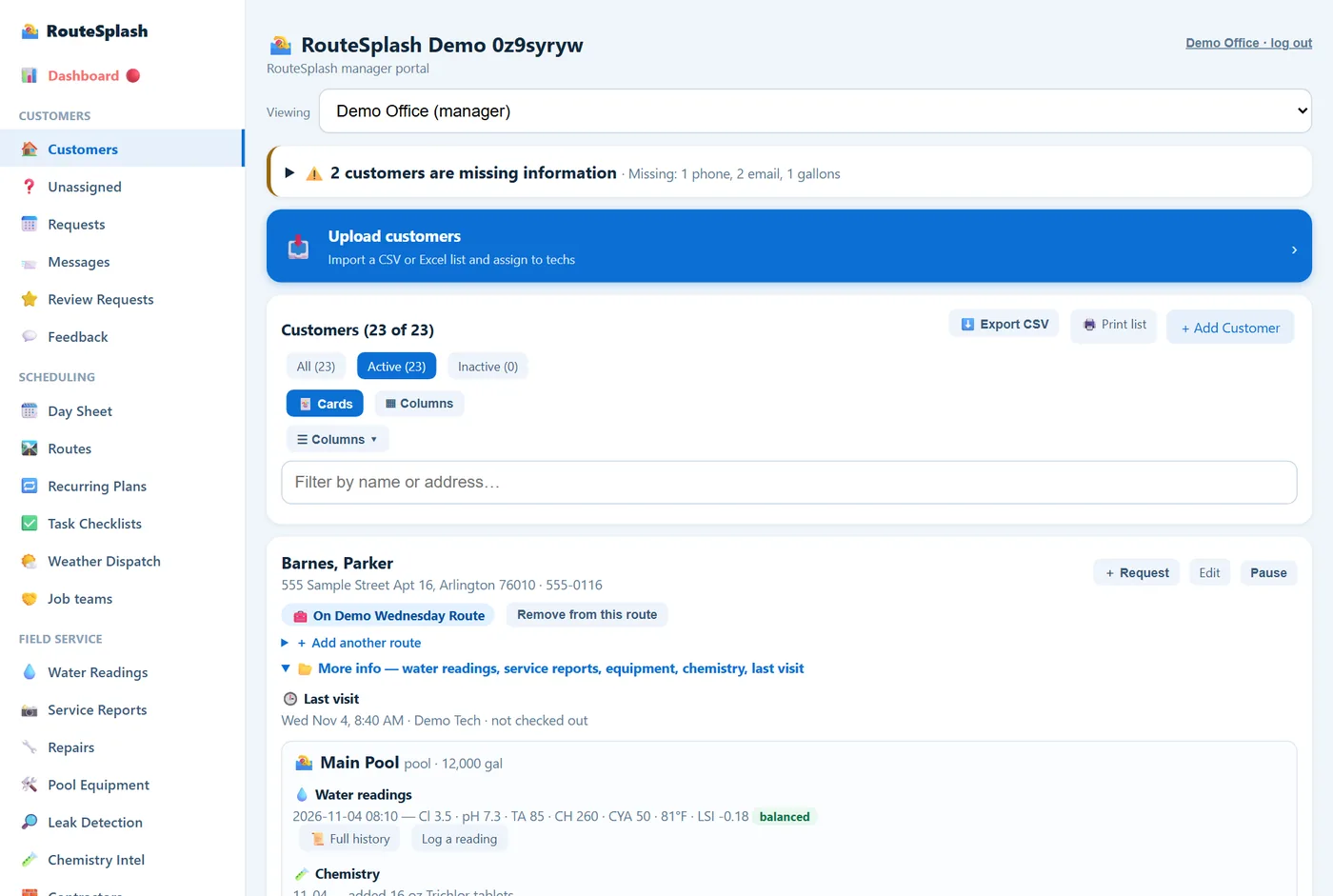
More info opens the customer's Property History. Each visit shows arrival and departure, GPS confirmation, readings, photos and the checklist, so you can answer "did you even come?" in seconds. Each visit also has two ready-made reply letters, filled in from the record. At the very bottom, after the visit records, House sold? Transfer to the new owner moves the account to the new owner: the pool's history stays, and the old owner loses portal access and AutoPay.
Scheduling
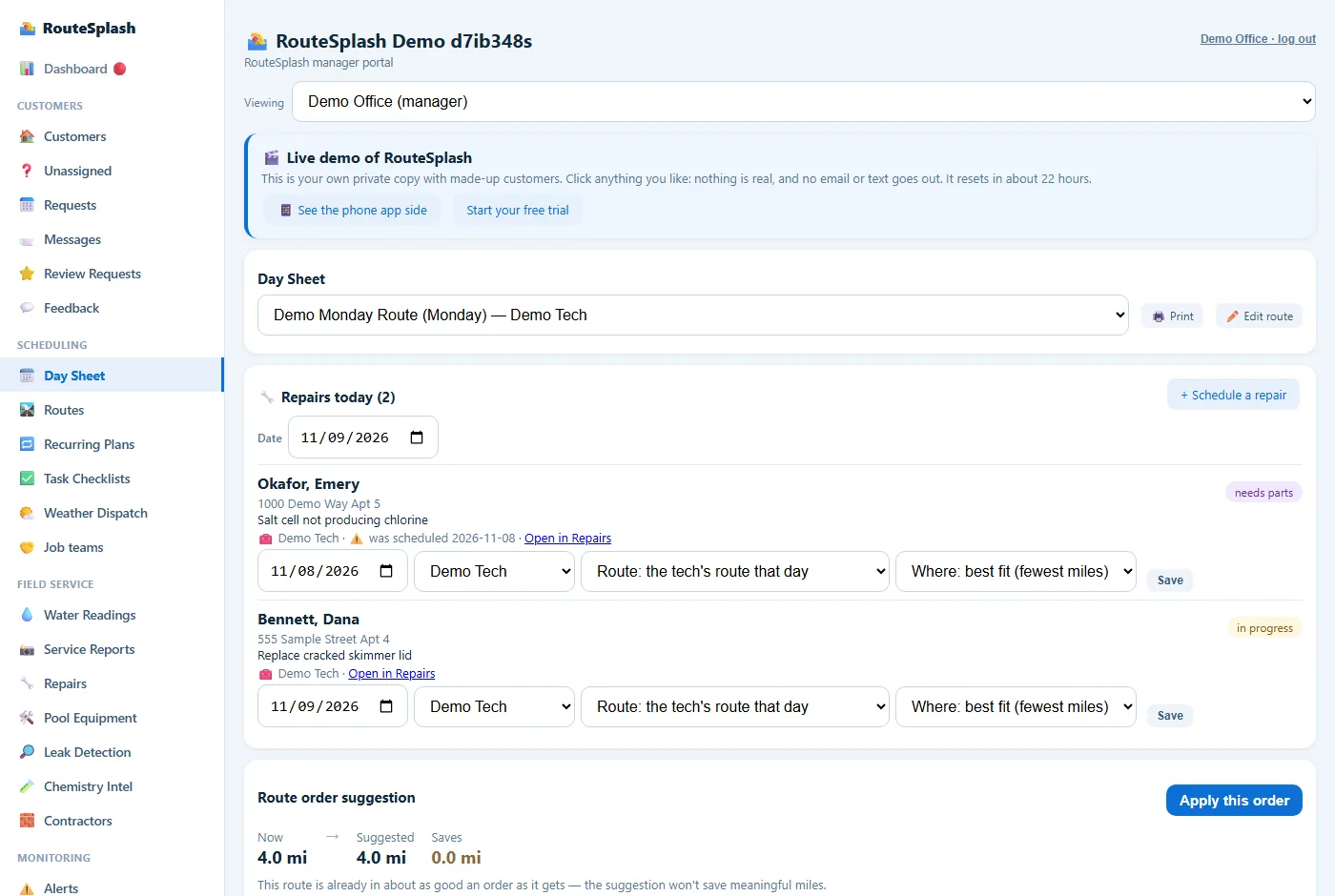
- Routes: one per service day with an assigned tech and drag-to-order stops. Optimize reorders the day to cut driving.
- Recurring plans: weekly, every 2 weeks, monthly or custom per customer. Generate stops ahead; re-running never duplicates them. Pause while a customer is on hold.
- The day sheet: skip a stop for one date (today or a date you plan ahead), add a one-time stop, move a stop to another route, or reassign a stop to another tech. Skipped stops disappear from the tech's sheet and from the finish-time forecast.
- One day at a time: the Day Sheet shows the day of the route you pick (Wednesday's route opened on a Monday shows this coming Wednesday). Everything on it is for that day: check-ins made that day, that day's skips, and the Repairs card for that date on that route. Unfinished repairs from earlier days are one line with a link to Repairs. The finish time and arrival times only show on the day itself. A visit from an earlier day that was never checked out shows as a dated warning, because it stops the tech from checking in anywhere else until it is closed.
- Gate codes on the Day Sheet: every stop shows a yellow 🔑 Gate tag with the code (grey No gate code when there isn't one), next to the Dogs and Call-ahead tags, with the access notes under it. Click ✎ on the tag to change the gate code or access notes right there. It saves to the customer's record, so the customer card and the tech's phone show the change. Anyone who can edit customers can change it.
- Where a one-time stop goes: when you add one, Where in the route starts on 📍 Auto-route (fewest miles), which puts it where it adds the least driving. You can pick First stop, Last stop or After a customer instead. Each one-time stop and repair stop also has an 📍 Auto-route button to place it again after the route changes, and you can still move it by hand with ▲ ▼ or by dragging. To remove one: a one-time stop has ✕; a repair stop has ✕ Take off this day, which takes the date off the repair and keeps it open in Repairs, ready to schedule again.
- Tech out? Cover this route (inside the route's Edit card): each stop goes to whichever other route that day adds the fewest miles. You review the plan, then apply it.
- Task checklists: the required tasks per stop, and the day's rollup of who stamped what.
- Weather dispatch: your rules ("below 40°F = chemicals only", "rain = skip the vacuum") are applied at 5:30 every morning and the decision is shown to techs.
Requests
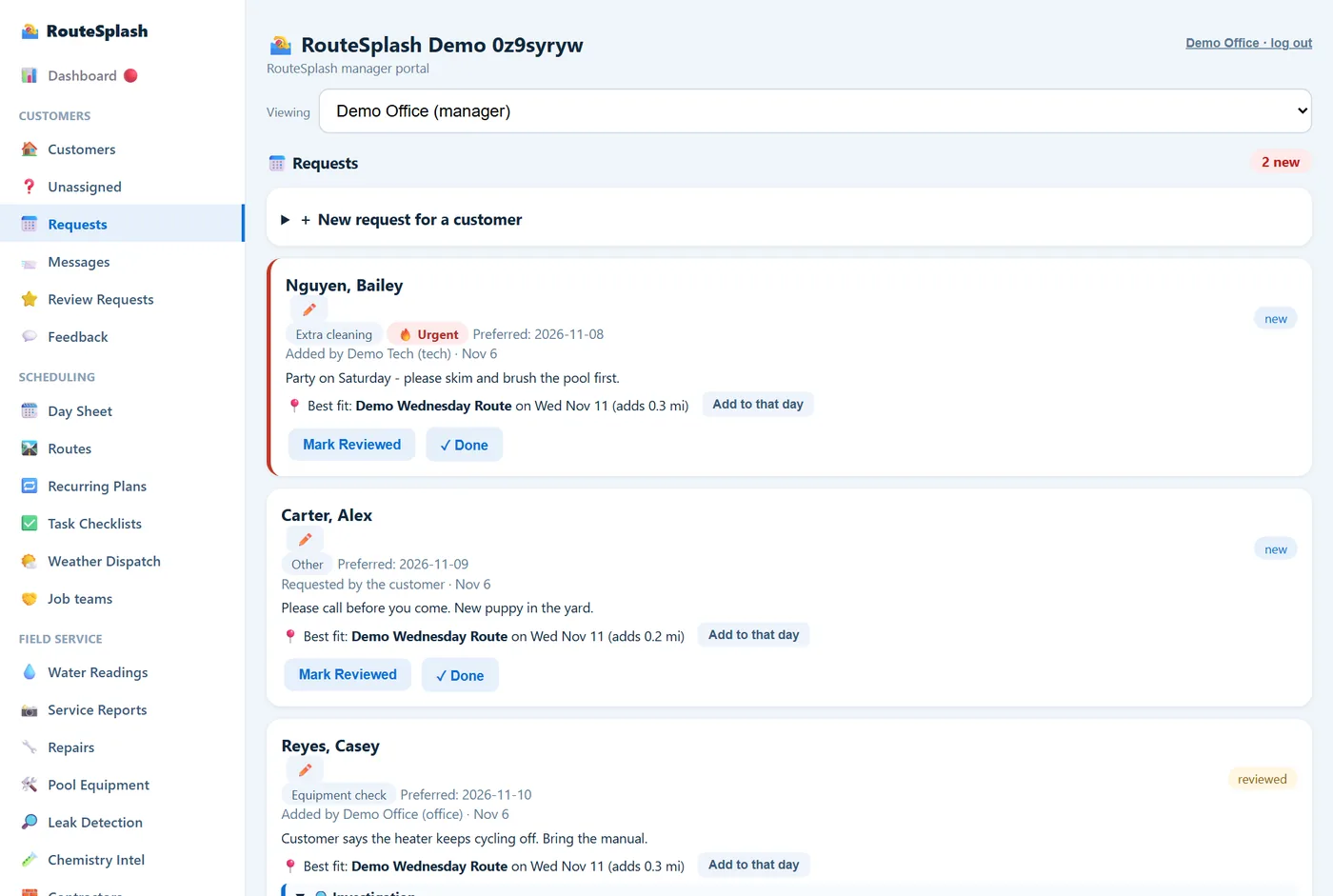
- Booking and problem requests from homeowners and techs land here, newest first.
- Problem requests (losing water, cloudy, green, equipment) arrive with a likely cause worked out from the customer's answers, the week's weather and the pool's history. For example "within normal evaporation for this heat", "pressure-side leak likely", or "do a bucket test". This is the Problem Investigator: it tells the office what to check first and whether to do a bucket test.
- Each request starts with a large 📅 Wants: (day) badge, the date the customer asked for. It turns red if that date has passed and the request is still open.
- Route suggestion (fewest miles) is a small fold-out under the request: open it to see the route and day that add the fewest miles, with an Add to that day button that creates the one-time stop and marks the request reviewed.
- ✓ Done… opens a Final notes box (optional: what was done, what to know next time), then Mark done. The closed request shows “✓ Done (date) by (name)” with the notes, and the notes also appear in the customer's request history under More info.
- Schedule as repair job: on a new request, pick the day, the tech and (if you want) the route, then tap Schedule as repair job. The request becomes a repair job, is marked reviewed, and lands on that tech's Day Sheet and phone for that day.
- Referrals from the homeowner portal are tracked here too: new, contacted, won or lost, and whether the reward was given.
Repairs & the Day Sheet
- Schedule a repair: portal → Repairs → + New Repair (or + Schedule a repair on the Day Sheet). Pick the customer, the date, the tech who does repair work and, optionally, the route. Techs are offered only if their work type includes repair.
- It goes on the stops for that day. If the customer is not already on a route that day, a one-time stop is added to the tech's route for that weekday (or the route you picked), placed where you choose. On the New Repair form (and when you turn a request into a repair) there is an Auto-route it checkbox, ticked by default: it picks the spot that adds the fewest driving miles. Untick it and, once you have picked the date and the tech (or a route), a list shows that day's stops so you can place the repair after any customer, as the first stop or as the last stop. If the customer is already a stop that day, no extra stop is made: the repair is logged in Repairs and a 🔧 Repair today note appears on their stop. If the tech has no route that day, the repair is logged in Repairs only and the message says so.
- On the route list: on the portal Day Sheet, a repair stop appears in the numbered list at the position you chose, with a blue 🔧 Repair badge showing its status, tech and issue. (Other one-day-only stops show the same way with an orange clock.) Regular stops keep their own numbers. To change the order, drag a stop by its ⠿ handle, or use the ▲ / ▼ arrows to move it one place up or down. This works for one-time and repair stops too, so a stop that was placed at the end can be moved to where it belongs. The order saves right away and the tech's phone follows it. Moving a regular stop changes the route's usual order; moving a one-time stop only changes that day.
- Day Sheet → Repairs card: every open repair for the chosen date (today by default, with older unfinished ones marked as late), with its tech. Change the date, tech or route right there and tap Save: the stop moves with it. Use Place in route on a repair to move its stop within that day (it shows which stop number it is), and the tech's phone follows the new order. Cancelling or declining a repair removes its stop.
- Return with parts: when a tech marks a job Needs parts with a return date, it moves to that day's stops. In the portal, a job waiting on parts has a Set the return visit form to pick the date, tech and route.
- Repair pricing: on the portal Repairs page, open Repair pricing to set your labor rate ($ per hour) and your parts markup (%). To charge a set price instead, give the job a flat price when you create it, when you reschedule it, or when it is completed (the app's Complete form has the same box).
- Done and billed: the tech completes the job (what was done, labor hours, parts cost) and the 1-year warranty is stamped. On a completed job, Bill this job (portal Repairs tab or the app) makes a draft invoice. If you type an amount, that is used. Otherwise a flat price on the job is billed as one line. Otherwise it bills labor hours × your labor rate plus parts with your markup. It is never sent automatically; review and send it from Invoices. A job can be billed once.
Leads
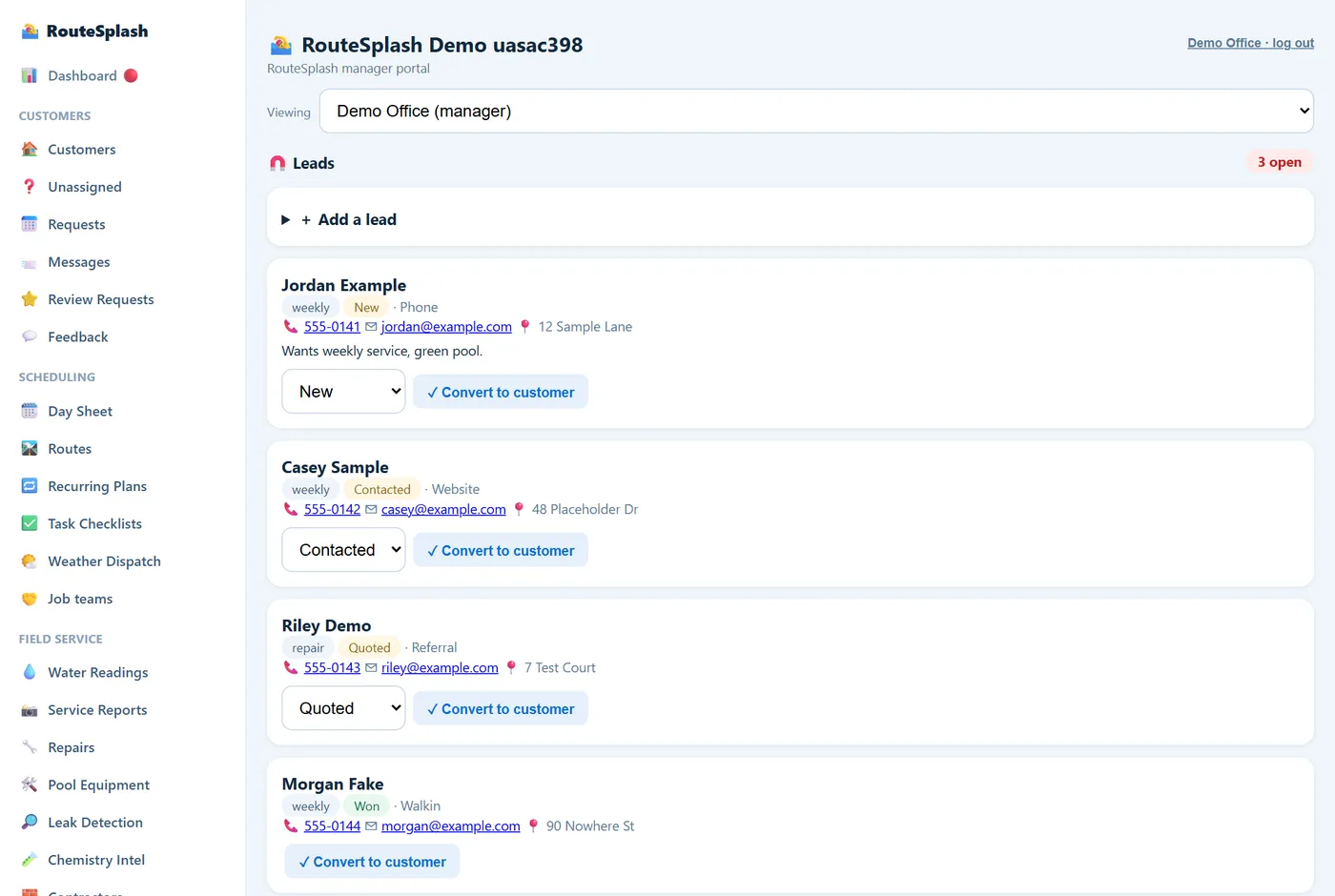
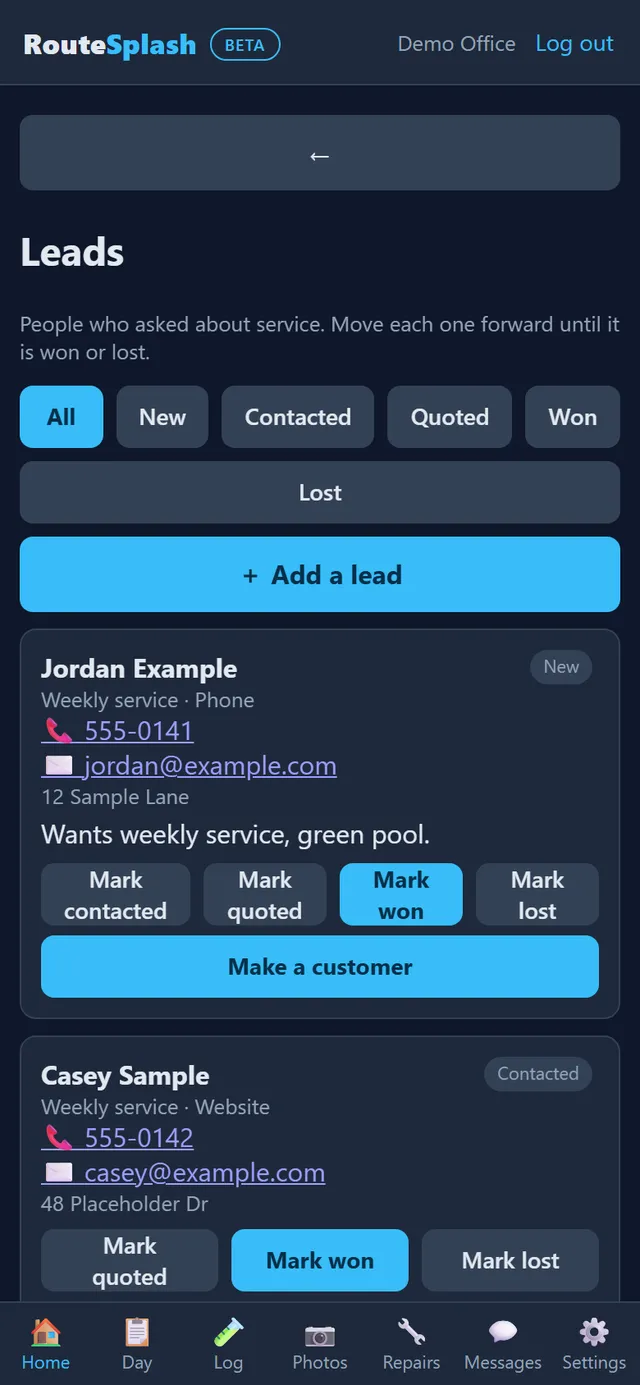
- Find it in the portal menu as Leads, or in the app on Home → Leads (office roles).
- Add a lead with name, phone, email, address, the service they want (weekly, bi-weekly, repair, one-time clean or other) and how they found you (website, phone, referral, walk-in, other).
- Each lead moves forward only: new, contacted, quoted, then won or lost. A lost lead needs a reason. A won or lost lead cannot be changed back.
- Convert to customer (Make a customer in the app) creates the customer record from the lead, ready to put on a route. A lost lead cannot be converted.
Monitoring
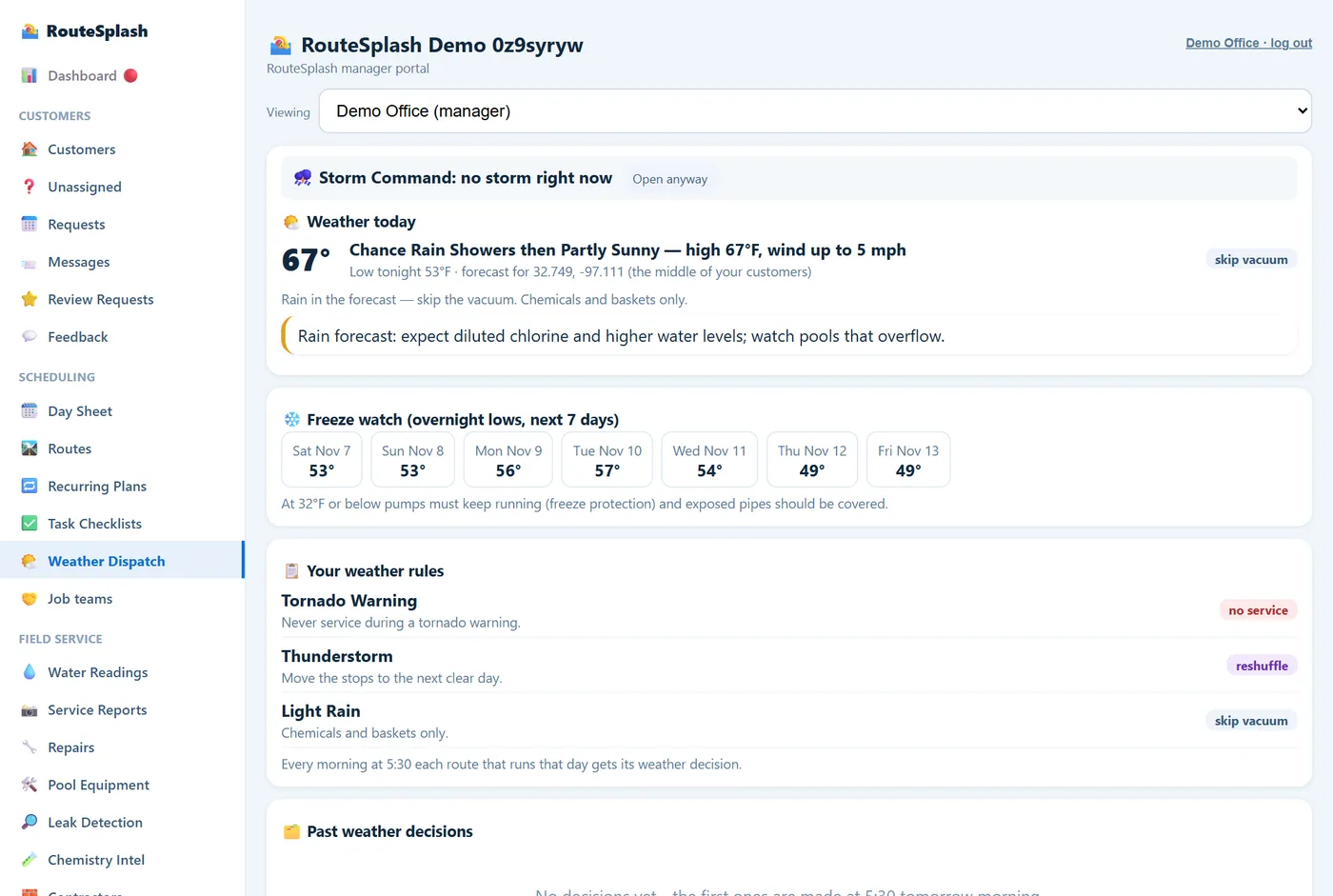
- Storm Command switches on by itself in severe weather. It ranks every pool by flood, debris and equipment risk using the pool's own notes and history, pre-ticks the priority ones, and adds the chosen pools as stops on the routes running that day in one click.
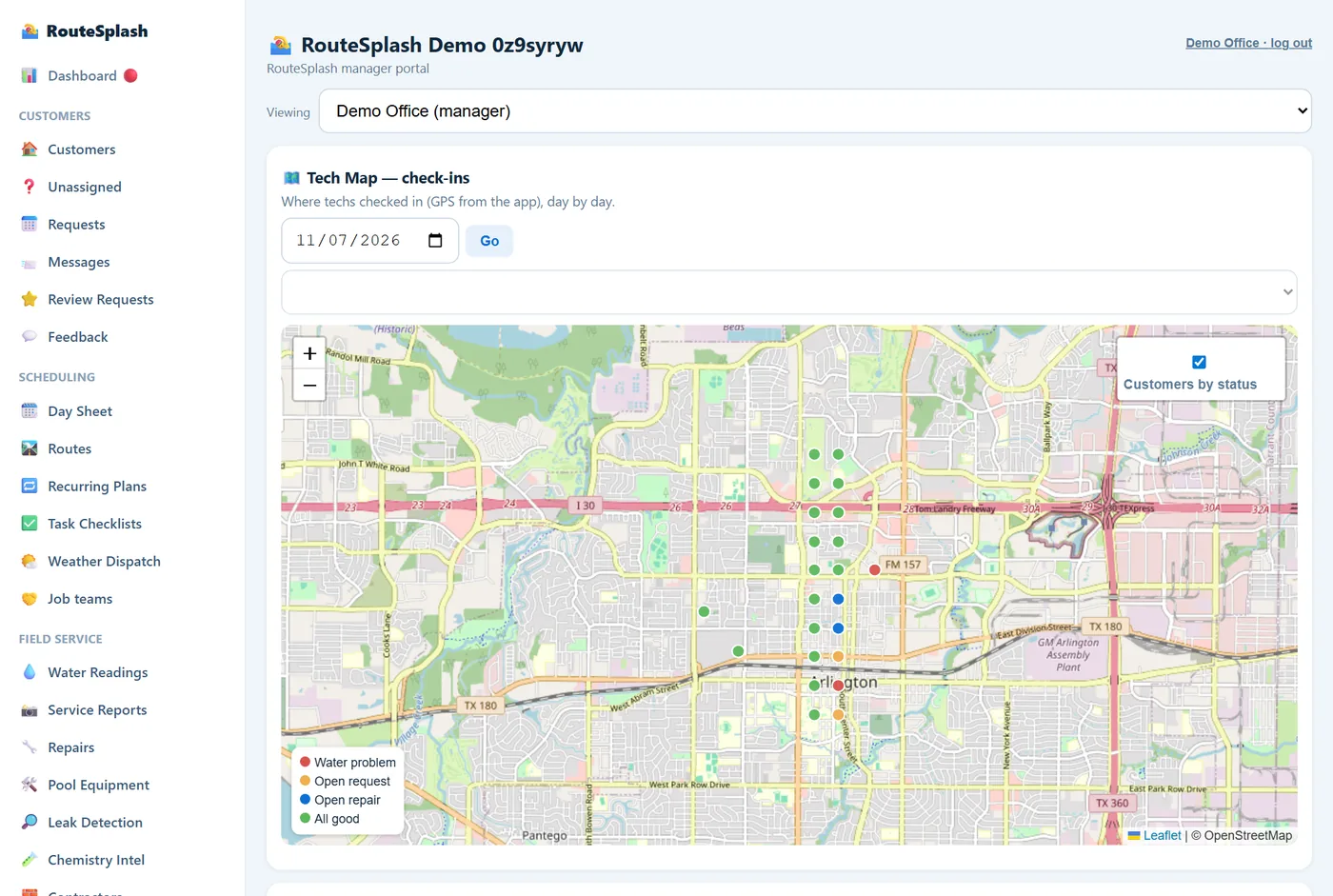
- Tech Map tracks and stops: the map draws where the truck drove and where it sat still for 6 minutes or more. GPS jitter is filtered out of the drawn line and the miles: pings with a very poor fix (worse than about 150 m), sudden "jumps" that would need over 85 mph, and tiny moves smaller than the GPS's own error are removed, and walking-pace movement (4 mph or less) is not drawn or counted as miles driven. Stops are always found from every ping, so a weak signal at a property never makes a stop disappear. Each stop is matched to the nearest customer address within about 250 m of its GPS spot (the stored address points are often 150 to 200 m off from where the truck parks): hover or click a stop ring to see the customer, the address and how far the GPS spot was from it, and the Stops list under the map shows the same. A stop with no customer that close says so (a supply run, fuel or lunch). Brief visits: GPS pings come every 2 to 3 minutes, so a visit of a few minutes can leave only one or two pings. A slow or still ping within about 200 m of a customer's address that is not already part of a stop shows as a dashed ring brief visit, so short stops are not lost. Check-ins: when a tech checks in to a customer, that is added on top of the GPS data: a check-in that overlaps a GPS stop turns it green and names the customer for certain (with the check-in and check-out times), and a check-in with no GPS dwell still appears as its own stop. Techs who do not check in are covered by GPS alone. One visit is one stop: a brief arrival ping next to a stop, a stop that GPS drift split in two, and a check-in logged a few minutes after the GPS stop are all folded into a single stop. Stops for two different customers are never merged, even next-door neighbors. The colored dots are not stops: they are every customer's address point, colored by status (red water problem, orange open request, blue open repair, green all good). Use the Customers by status switch in the map's top-right corner to turn them off.
- Speed alerts flag a tech driving over the road's limit between stops. The limits per road type are yours to set.
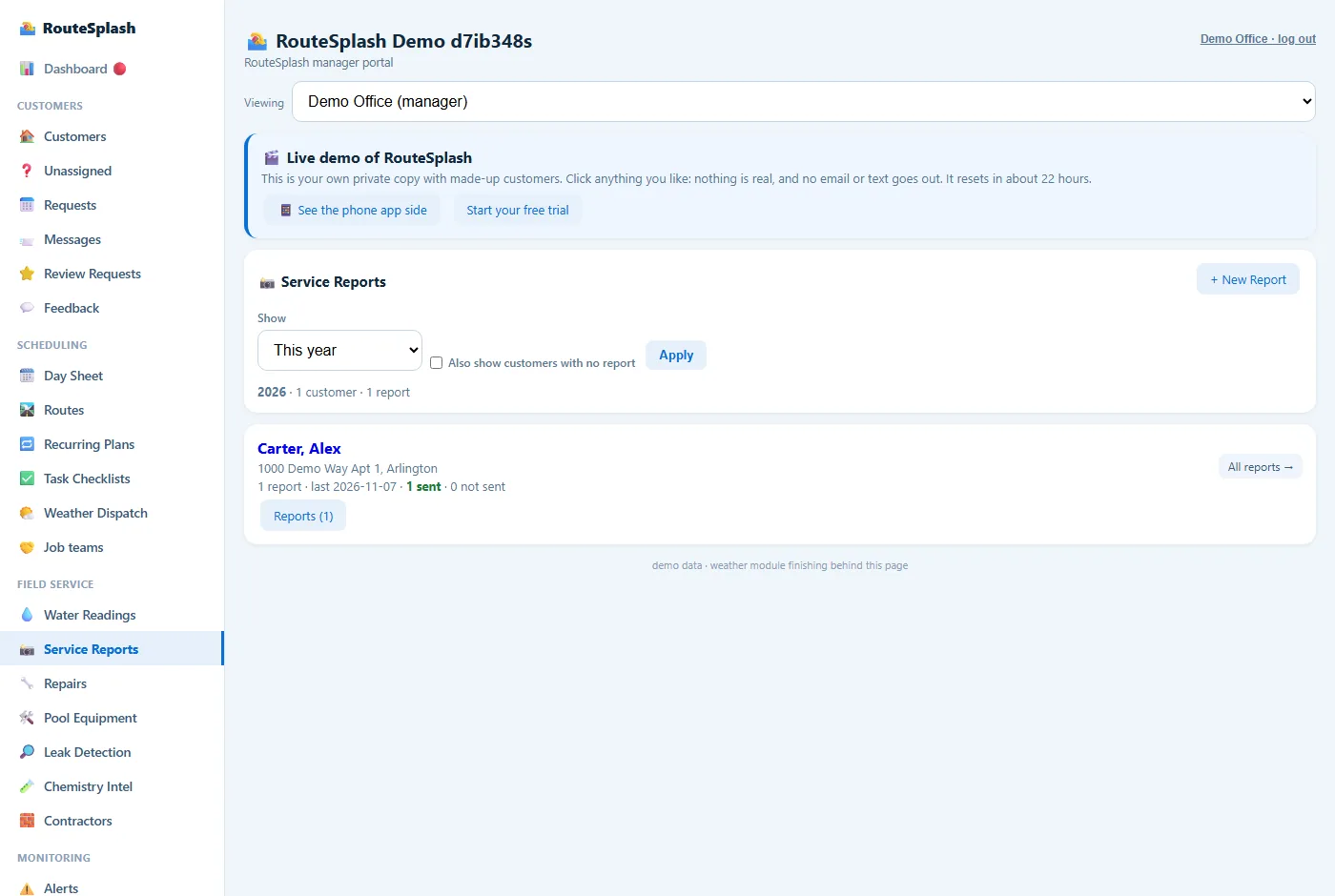
- Service Reports starts with a Show dropdown for the period: Today, Yesterday, This week, Last week, This month, Last month, This year, Last year, A specific day, A specific week (pick any date in it; weeks run Monday to Sunday) or a Custom range. Below it is the list of customers who had a report in that period, each with how many reports, the date of the last one, and how many were sent and not sent (an orange ⚠ flag shows when something is waiting to be sent). Tick Also show customers with no report to see who was not reported (shown greyed). Tap Reports (n) on a customer to list their reports for the period, or All reports to open the customer's page, which has the same dropdown (plus All time). Every report row shows a green ✔ Sent mark with the date it was sent, or an orange Not sent mark with a Send button (customers with no email show "no email on file"). Sending records the date from then on; reports sent before that show "Sent about" their last-updated date. Click Open on a report to read it right there (the notes, readings, chemicals added, photos, the sent mark and Send), with the customer's other reports listed underneath; step through with Newer and Older, or use Open full page for the printable report in a new tab.
- Messages is the office side of every conversation.
24/7 equipment monitoring
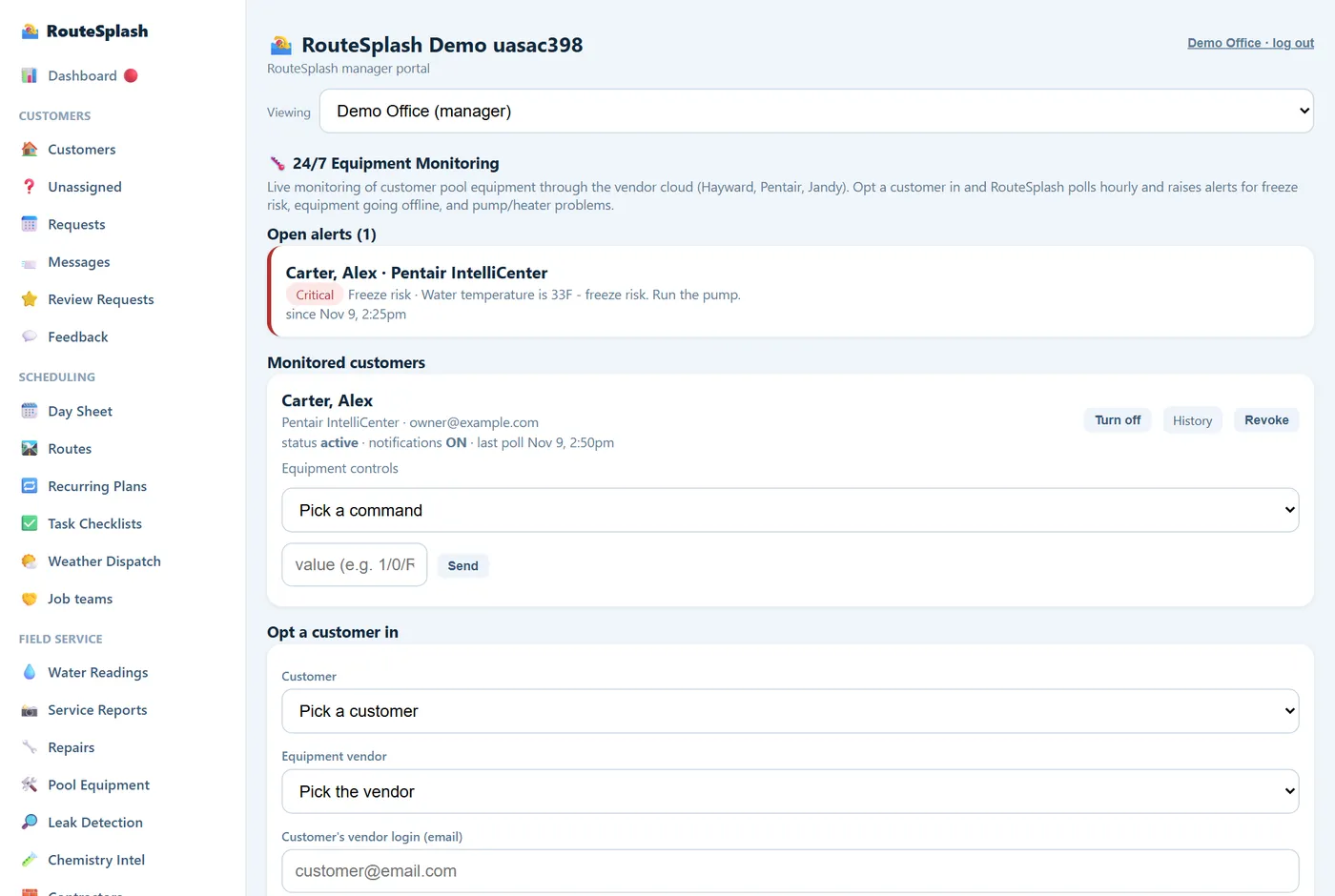
For customers with Pentair, Hayward or Jandy equipment, RouteSplash can read the equipment's status about once an hour and warn you before a small problem becomes an emergency. It is optional and off for every customer until you turn it on, and the homeowner has to agree because it uses their own equipment account.
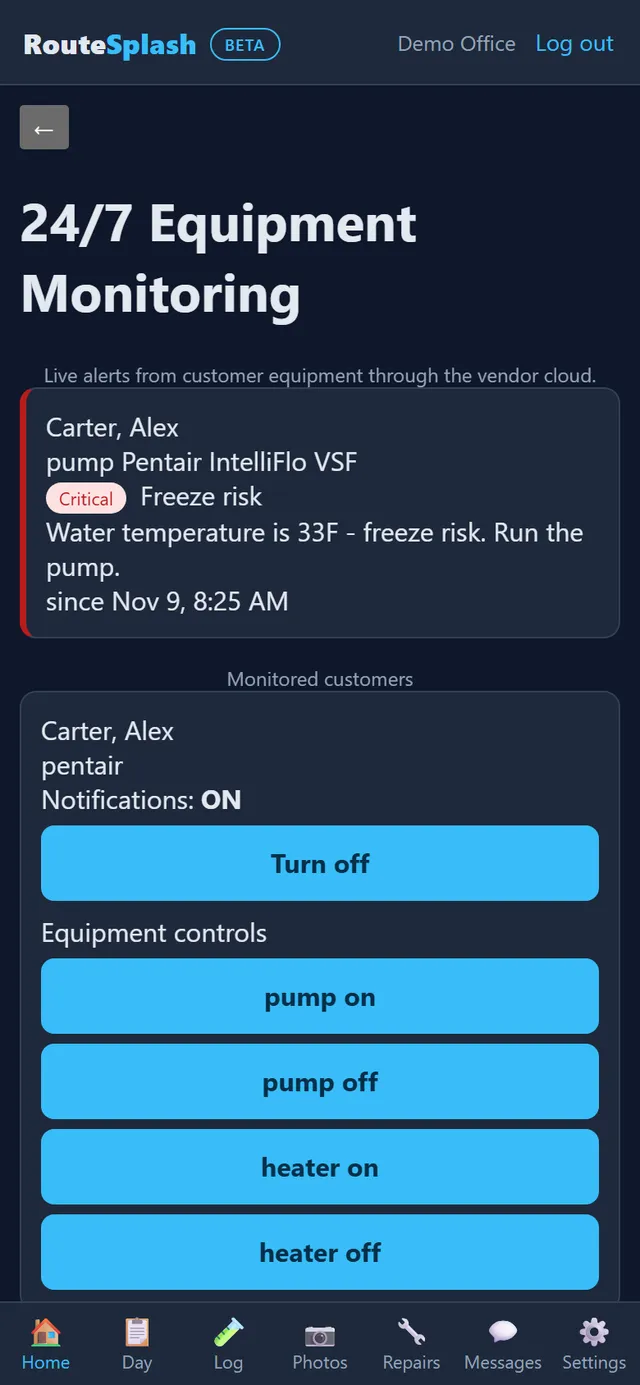
- Turn it on (Admin): portal menu → Equipment monitoring → Opt a customer in: pick the customer and the brand, and enter the login the homeowner uses for that brand's app. The login is stored encrypted. Revoke stops the readings and erases the stored login. The office can do the same from the phone app: Home → Equipment alerts → Opt a customer in (customer, brand, the equipment app's email and password, and the system or serial number if the brand needs one). Each monitored customer there has Turn on / Turn off and Revoke, and Revoke asks you to confirm first. Techs see alerts there but cannot opt customers in or out.
- The on/off switch: each monitored customer has a Turn on / Turn off button for alerts. Readings and alerts only run when the customer has equipment on file, and a customer is never called "offline" before the first successful reading.
- What it warns about: freeze risk (water or air at 34°F or below), offline (no reading for over 3 hours), a heater left on, a pump running 24 hours or more, a pump at 100 RPM or less, and a hot-weather check (80°F or above with the pump running under 10 hours or below 1,500 RPM). These are fixed rules, not guesses.
- Who sees it: the office sees every alert in the portal. A tech sees alerts for the customers on their own routes in the app under Home → Equipment alerts. A homeowner sees their own equipment status in their portal.
- Equipment settings: under each monitored customer, open ⚙️ Equipment settings for the same plain settings the app has (Pump On/Off/speed, Heater On/Off/temperature, Salt cell output, Super-chlorinate, only what that brand supports). In the app it is the Equipment settings button on each customer under Equipment alerts. Every change asks you to confirm first and is written to a log.
- Filter pressure: on a customer's equipment, enter the filter's PSI and the PSI at which it needs cleaning. When a reading reaches that level an alert opens on the piece of equipment, and it clears when the pressure comes back down.
Costs & Insights in the Money section
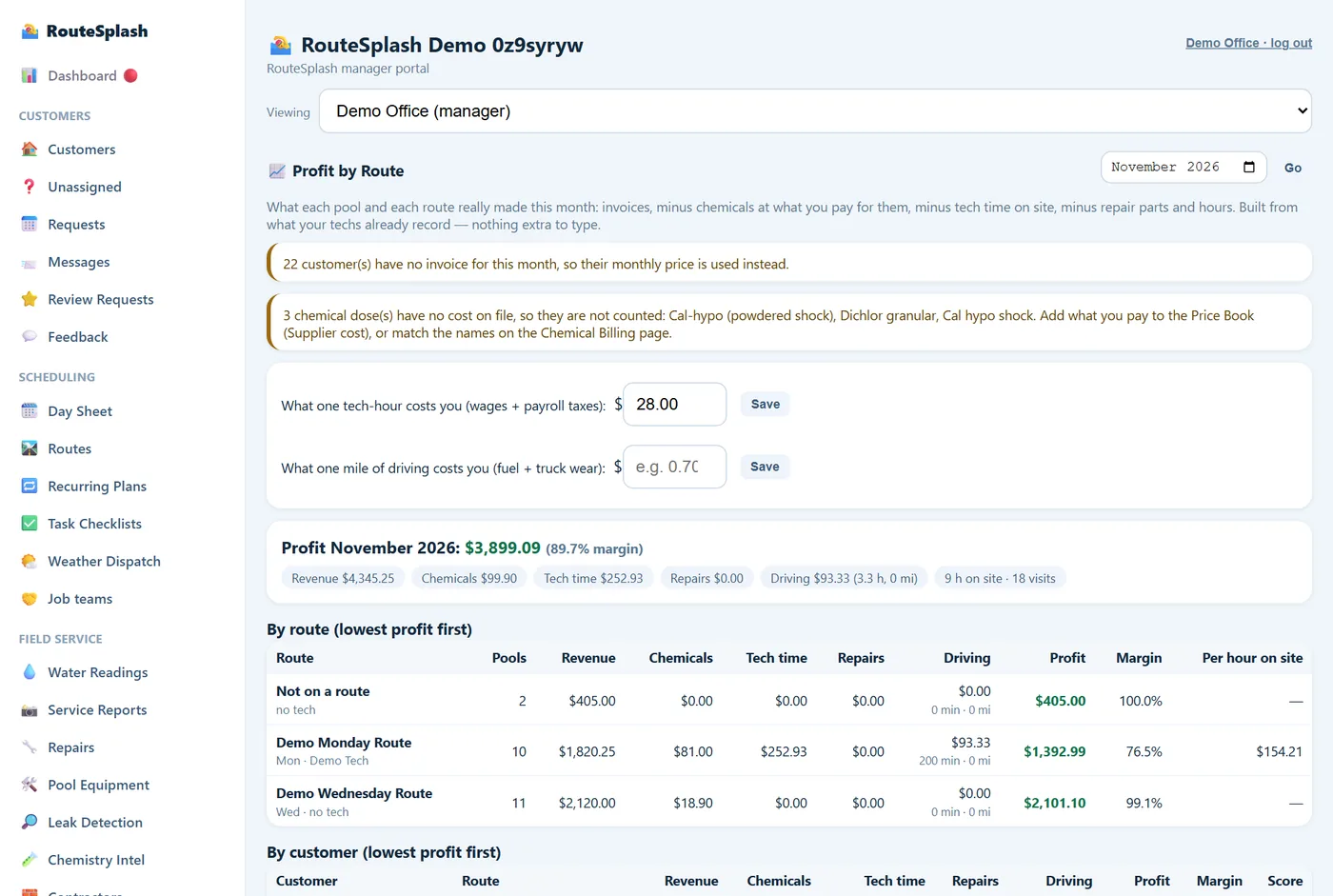
- Profit by Route: profit and margin per route and per customer from revenue, chemicals at your cost, tech time, repairs and driving. Each customer gets an A to F grade and plain suggestions, such as the monthly price that would cover this pool's real costs at a healthy margin.
- Revenue Opportunities: equipment due for service, equipment past its typical life, repeat repairs, and quotes waiting, each with an Open customer and a Quote button.
- Hours & Payroll: this week's quality board, tech scorecards (stops, average minutes per pool, readings and reports filed, callbacks, speed alerts), the time clock with every punch, and pay: hours with overtime past 40 at 1.5×, hourly or per-stop pay, and a CSV download for your payroll provider. Pay is visible only to Admin Manager and Admin.
- Truck weights vs logged chemicals: pounds that left the truck compared with pounds logged on pools, per chemical, per tech, per day. A day with more than 1 lb and 10% unlogged is flagged, with the dollar value at your supplier cost.
Customer texts
Texts go only to customers who agreed to them, either in the homeowner portal or marked by the office: "you're next" and "your tech has arrived" at check-in, and "service done" with the photo report link. A STOP reply is honored automatically, and each kind of text goes out at most once a day per customer.
Setup: the RouteSplash owner must first connect the shared Twilio texting account. Nothing sends until that account is connected. Then open Portal → Customer Texts, turn on Send customer texts, and choose the kinds to send. Consent is recorded with Texts OK on the customer or by the homeowner in their portal. The page shows consent, STOP and sent counts, recent results and a test-text box. Demo companies never send real texts.
Customer email notifications
Portal → Settings → Customer email notifications controls automatic customer email. Every switch is OFF by default. Turn on the Send emails to customers master switch, then choose only the messages you want: tech on the way, tech arrived, service report, review request, invoices, and an estimate copy. With the master switch OFF, none of those customer messages send. Office repair alerts and password resets are not affected.
Reviews
Save your Google review link once. Then ask for a review after a completed stop, at most once per customer every 90 days, with every request logged.
7. Quotes, invoices & getting paid
- Price book (portal → Price Book, app → Pricing): your goods and services by category with unit and price, your chemicals, and your labor rate and parts markup. Typing a chemical name suggests your company's chemical list, and a new chemical joins that list automatically.
- Quotes: build one from the price book, add labor and parts, and email it for approval, optionally with a deposit. The homeowner approves online with a typed signature. An accepted quote becomes an invoice in one tap. When the office marks an estimate approved, it can choose Email a copy; that customer copy requires the master customer-email switch and Estimate copy switch. Old quotes never change when prices do.
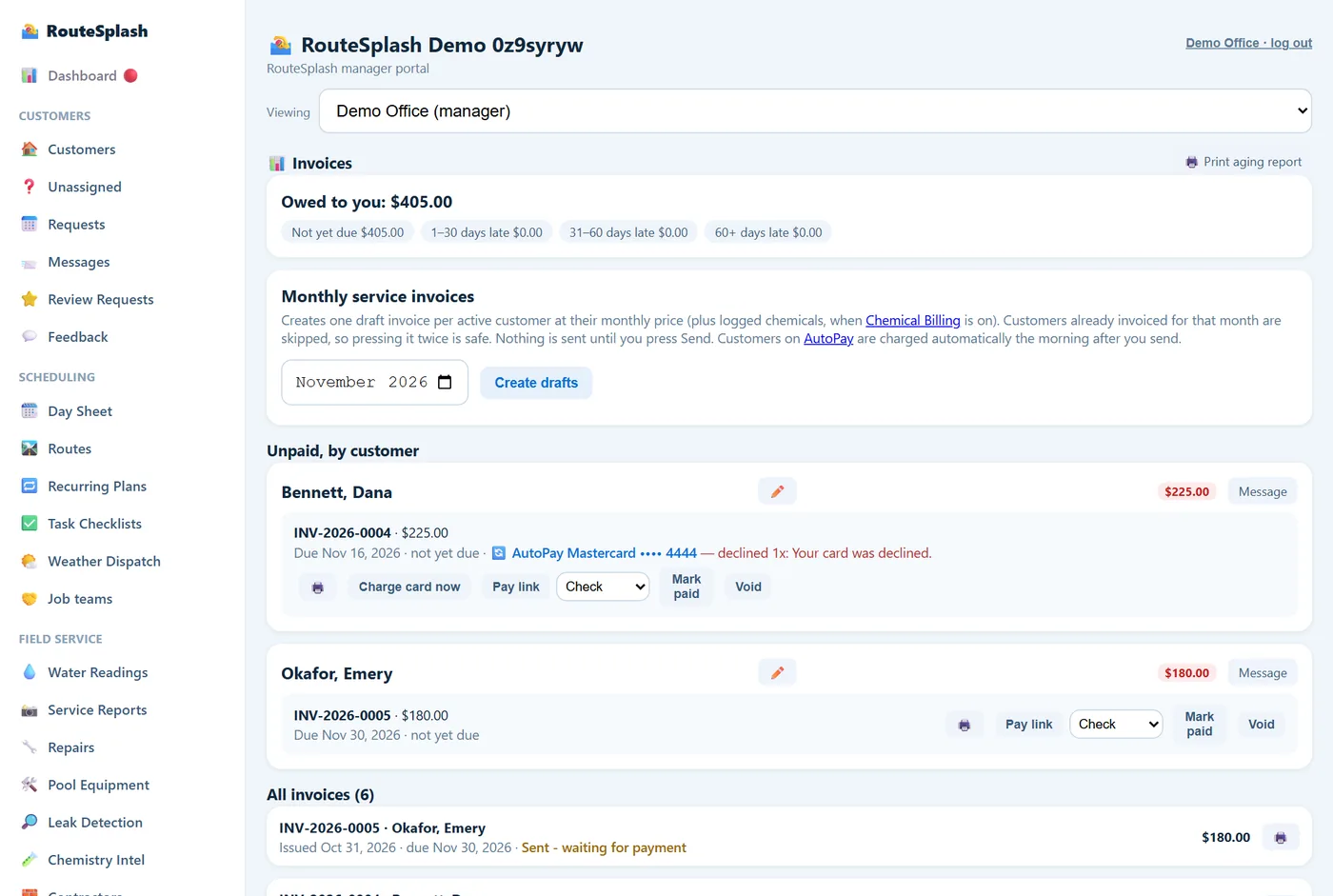
- Invoices: create the month's service invoices for every customer in one step, send them, and track payment status and aging (0–30, 31–60, 61–90 days). Voiding an invoice releases anything billed on it.
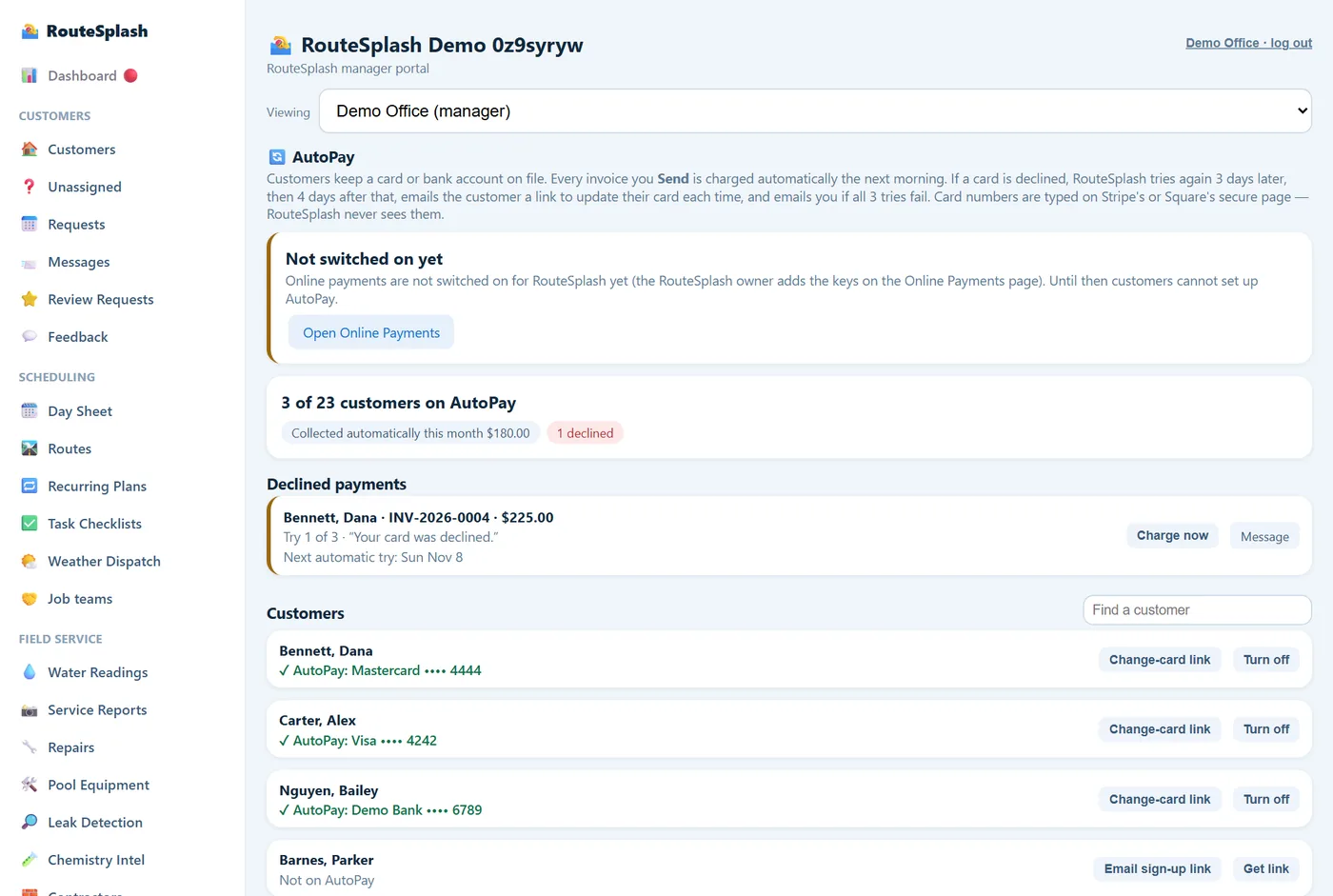
- Getting paid online: connect your own Stripe or Square account (portal → Online Payments). Money goes straight to you, and RouteSplash never sees card numbers. Every invoice has a Pay Online button and a shareable pay link. Stripe also takes bank (ACH) payments.
- AutoPay: email the homeowner a secure card-setup link, or they turn it on themselves in the portal. Sent invoices are charged automatically the next morning. A declined card is retried 3 days later, then 4 days after that, with an "update your card" email to the customer. If every try fails, the office is emailed and it shows in the Morning Briefing.
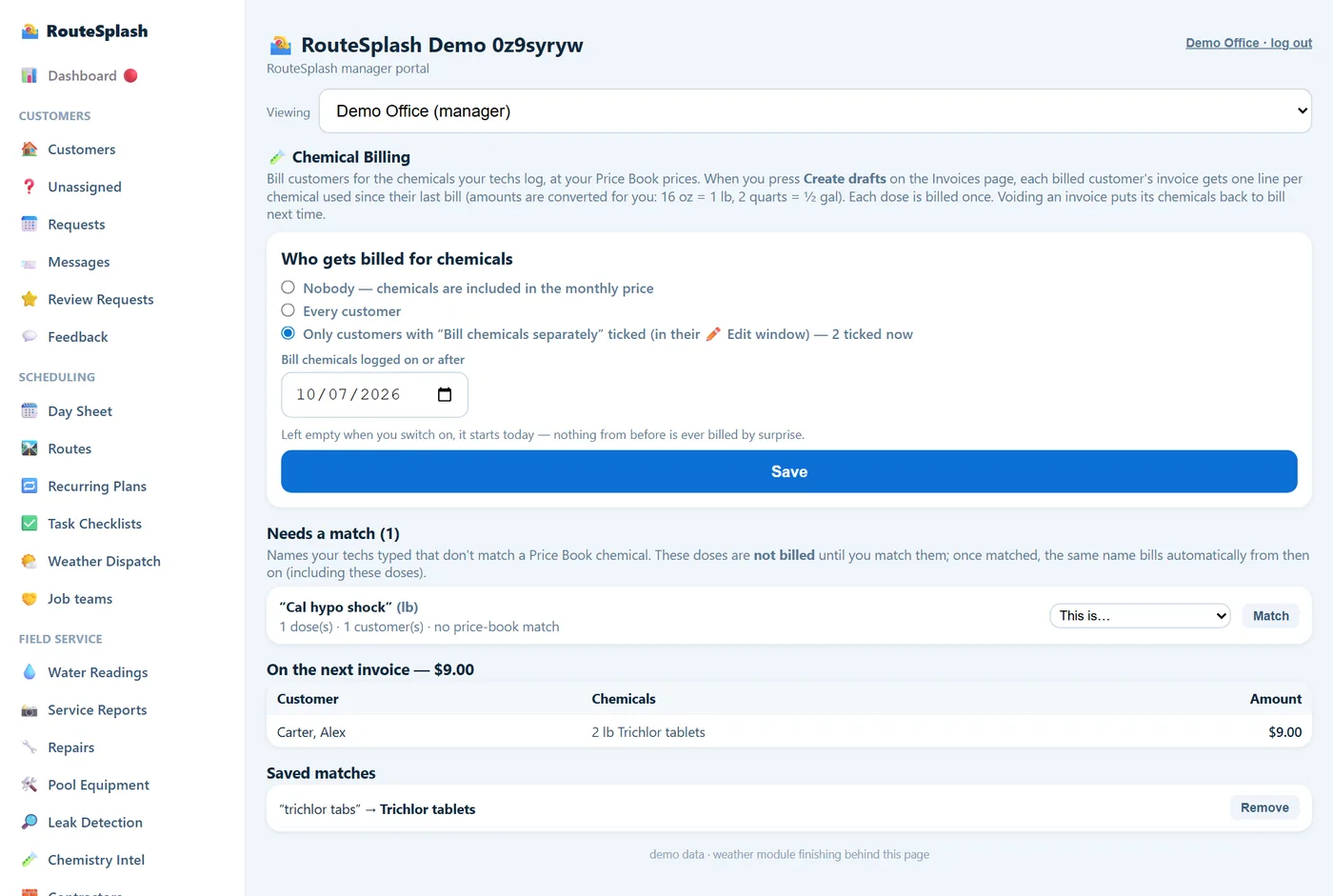
- Automatic chemical billing (all customers, or only the ones you tick): the chemicals your techs log are billed at your price-book prices. Units are converted for you (oz to lb, qt to gal). Each dose is billed exactly once. A chemical name that does not match your price book waits for you to match it once; it is never guessed. Billing starts from the day you switch it on and never back-bills.
- QuickBooks Online: after your Intuit/QuickBooks connection is enabled, two-way sync runs every 10 minutes or on Sync now. Invoices, customers, payments and voids go to QuickBooks, and payments, voids and customer edits made in QuickBooks come back into RouteSplash. QuickBooks Desktop: IIF export and import, plus CSV and JSON.
8. Trucks, tools & chemicals on board
- Clock in: pick your truck. Trucks marked in the shop or broken cannot be picked. You see the last driver's hand-off note and known issues.
- Clock out: leave a hand-off note for the next driver.
- Truck, tools & gear (a Home card) opens the truck sheet:
- Fill-up: odometer, gallons, dollars and a pump photo. Mileage per gallon is worked out between fill-ups.
- Damage: what happened, with a photo.
- Tools & gear: add gear to yourself or your truck from the standard list of 73 items (nets, poles, brushes, vacuums, test kits, hand and power tools, PVC supplies, safety gear), or type your own. Check gear in and out, and mark it lost or broken.
- Weigh Truck: weigh each chemical out in the morning and back in at night. Enter 0 for an empty jug; that is real usage, not a blank. Weighings belong to the signed-in tech and day. If the driver changes trucks, record the hand-off and have the new driver weigh that truck before continuing; the truck view uses the last driver's weighing.
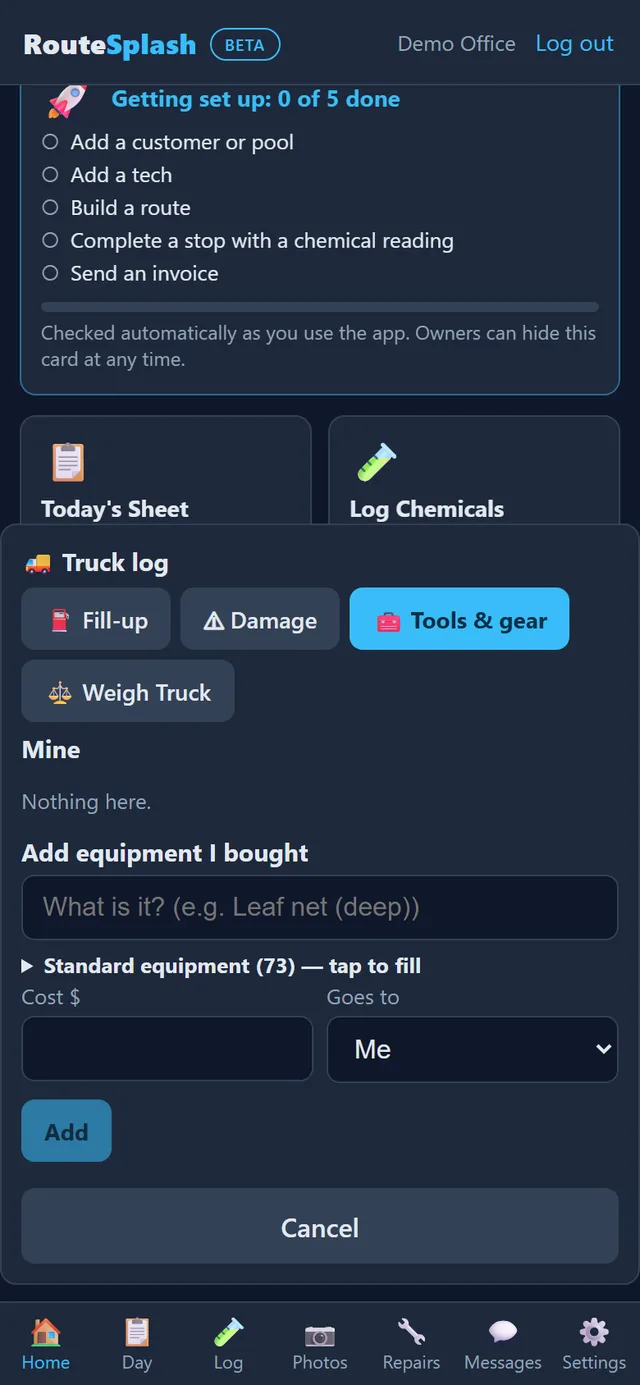
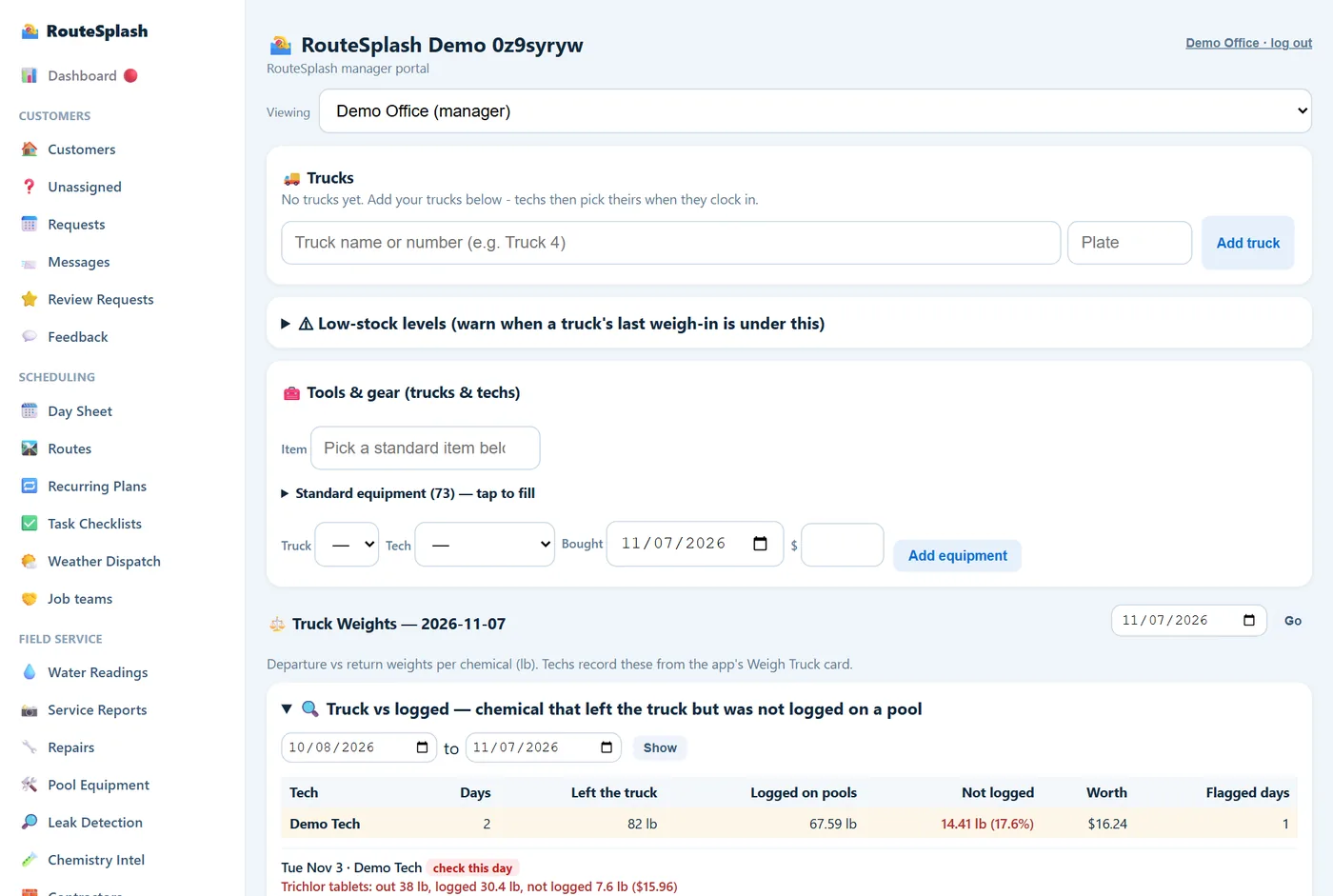
The office sees each truck's log and who drove it, mileage per gallon, low-stock warnings against tomorrow's route, equipment by person with flags for lost or broken items and "keeps buying nets", and the weighed-vs-logged chemical gap per tech per day.
9. Job teams, contractors & pool builds
Job teams
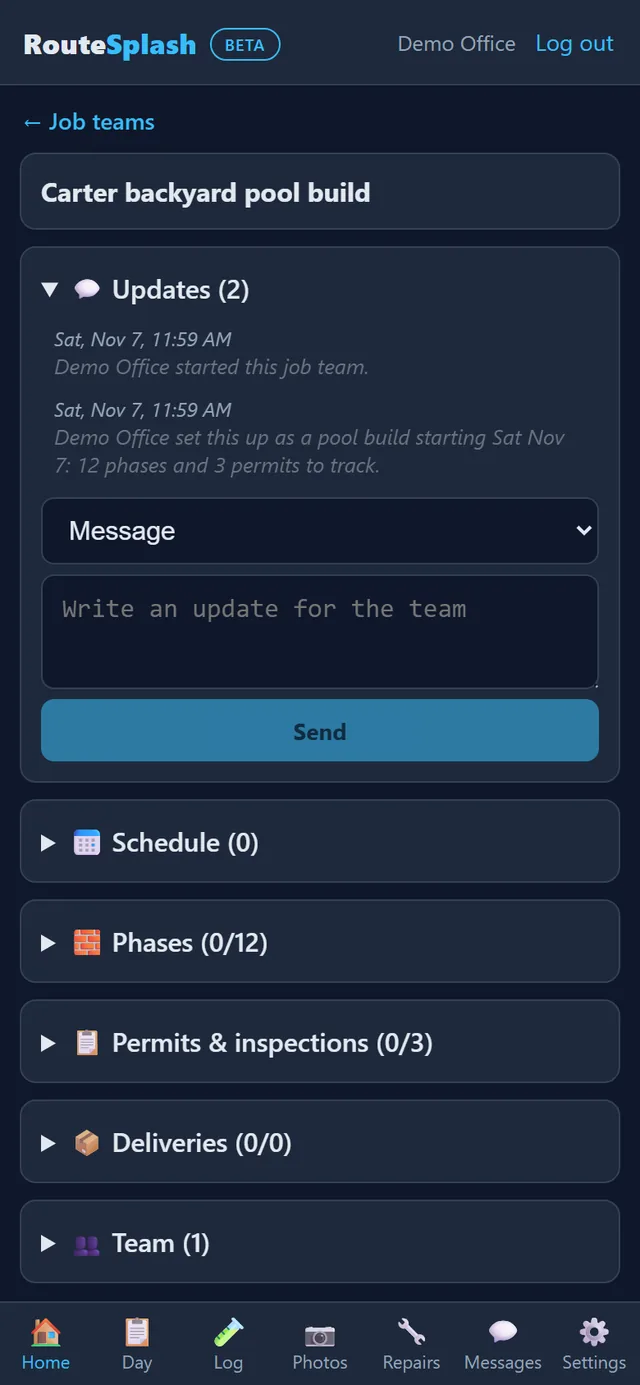
For any job bigger than a stop (a repair, a leak job or a project), start a job team: one shared page for the office, your techs and outside contractors, so "when is the electrician coming?" has one answer everyone can see. Admin Tech and up can start one and add people.
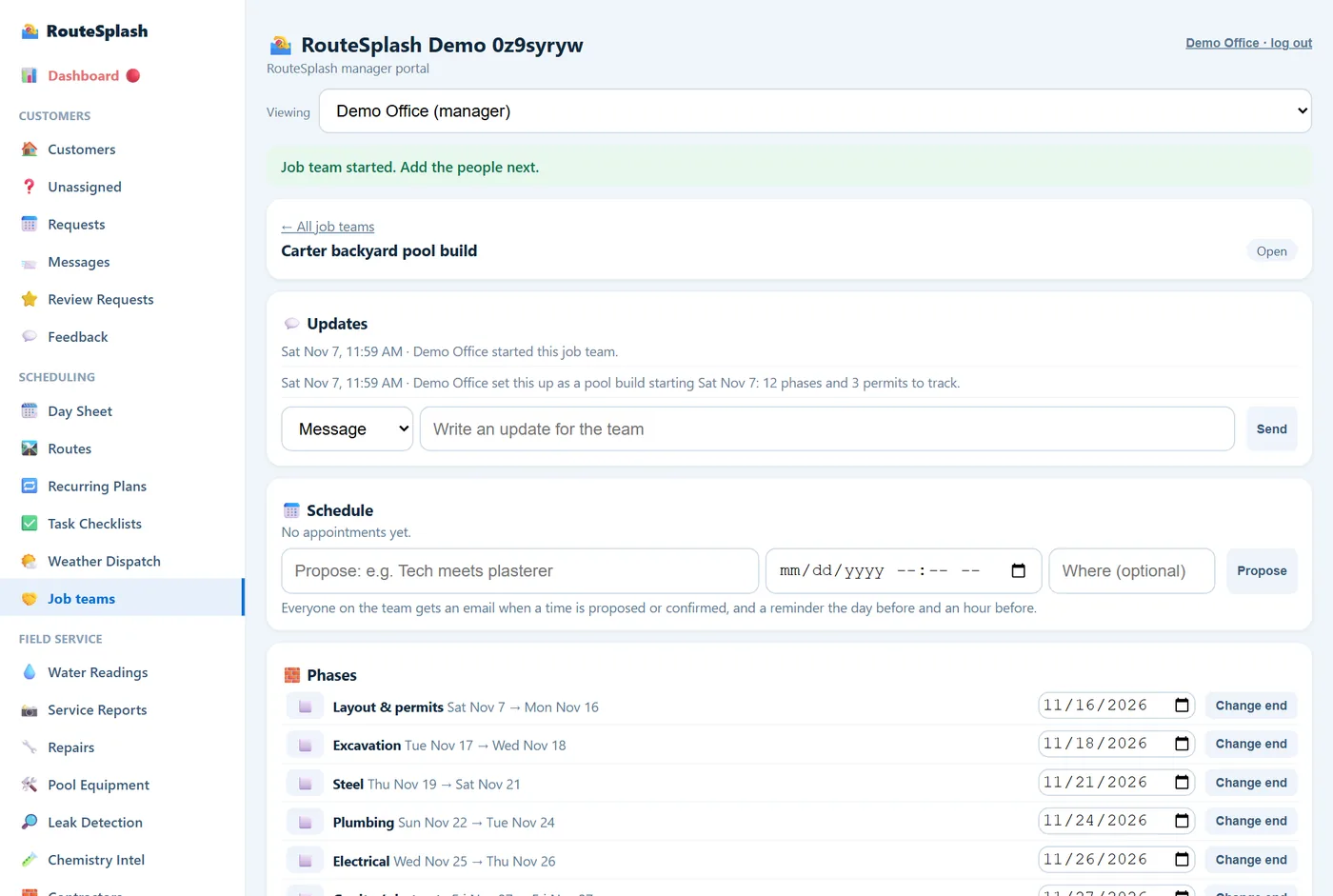
- Updates & issues: one thread per job. Anyone on the team can post; everyone sees the same history.
- Schedule: propose an appointment ("tech meets the plasterer Tuesday 9:00"); the other side accepts or suggests another time. Everyone gets an email when a time is proposed or confirmed, and a reminder the day before and an hour before.
- Phases: each with a start and end date. When one runs late, change its end and the later phases move back automatically.
- Deliveries & supplies: what is coming, when, and whether it arrived.
- Privacy per job: the office decides whether contractors see the customer's contact info, prices and access notes. All three are off by default.
Pool builds
Tick Pool build when you start a project team. RouteSplash fills in the 12 usual phases, dated back-to-back from your start date: layout & permits, excavation, steel, plumbing, electrical, gunite, cure, tile & coping, decking, equipment set, plaster, start-up. It also adds the three standard permits: building, electrical and plumbing/gas.
In Permits & inspections, track each permit's status (not started, applied, approved, inspection scheduled, passed, failed) and permit number, and use Schedule inspection to put the inspection on the job's schedule. Contractors can update permits themselves as they pull them. Approved, passed and failed are emailed to the team.
Reality capture
On a job team, Reality capture records a grade survey or an experimental photo survey with a name, date and capture details. You can record metadata about a point cloud or mesh made by a scanner such as a Revopoint. A binary PLY/OBJ upload, reconstructed 3D model and as-built-versus-design viewer are not available yet. The office sees the same capture records on the job team page in the portal.
Contractor directory
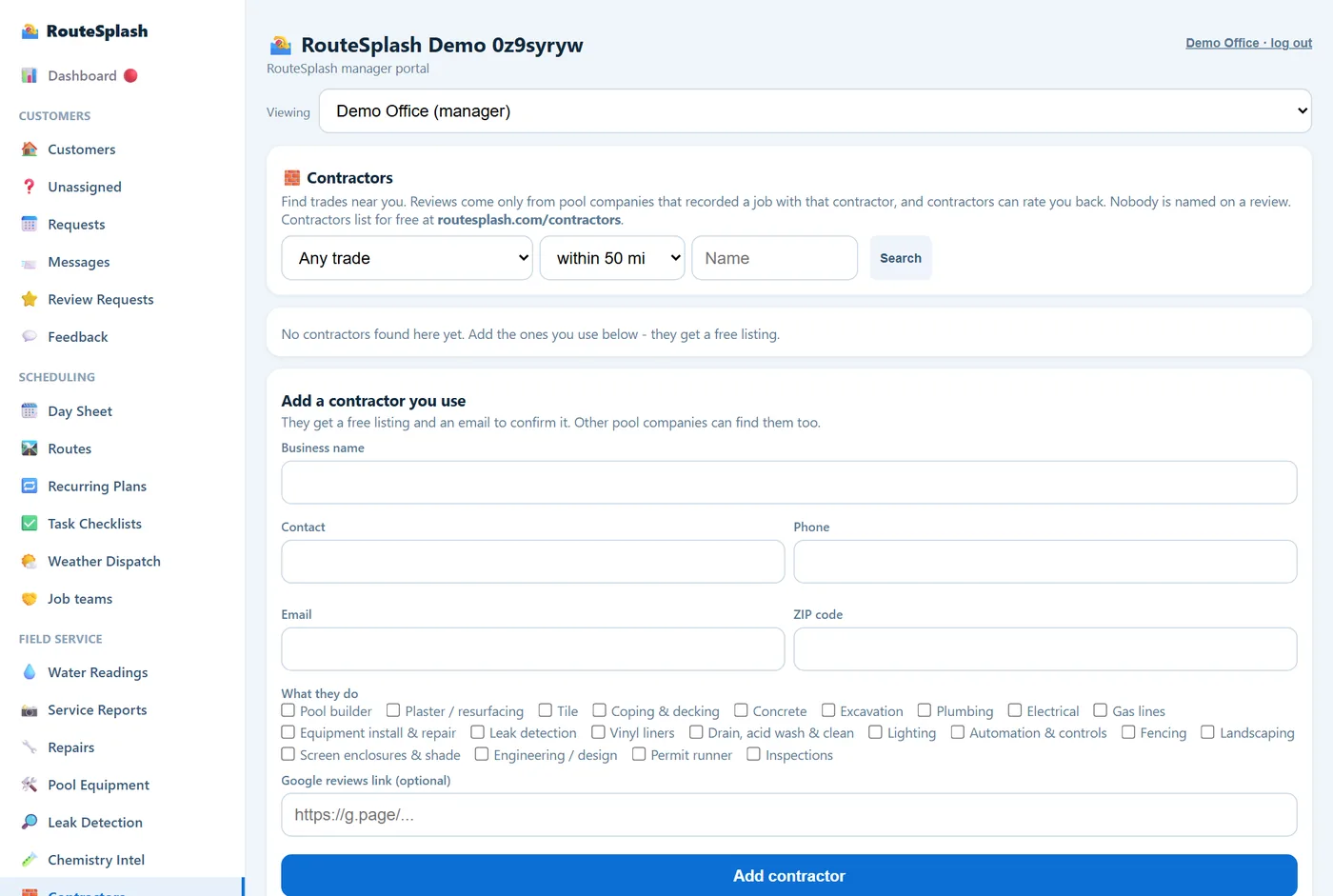
- Contractors list for free at routesplash.com/contractors. In the portal, search by trade and distance, or add a contractor yourself.
- After a recorded job, you can review the contractor and the contractor can review your company. Reviewers are shown as "a verified pool company" or "a verified contractor", never by name. Expired license or insurance shows as a warning.
- Contractors get their own sign-in, one across every company they work with. They post updates, accept times, mark phases done, update permits and log deliveries, and they never see anything you have not switched on for that job.
10. What your homeowners see
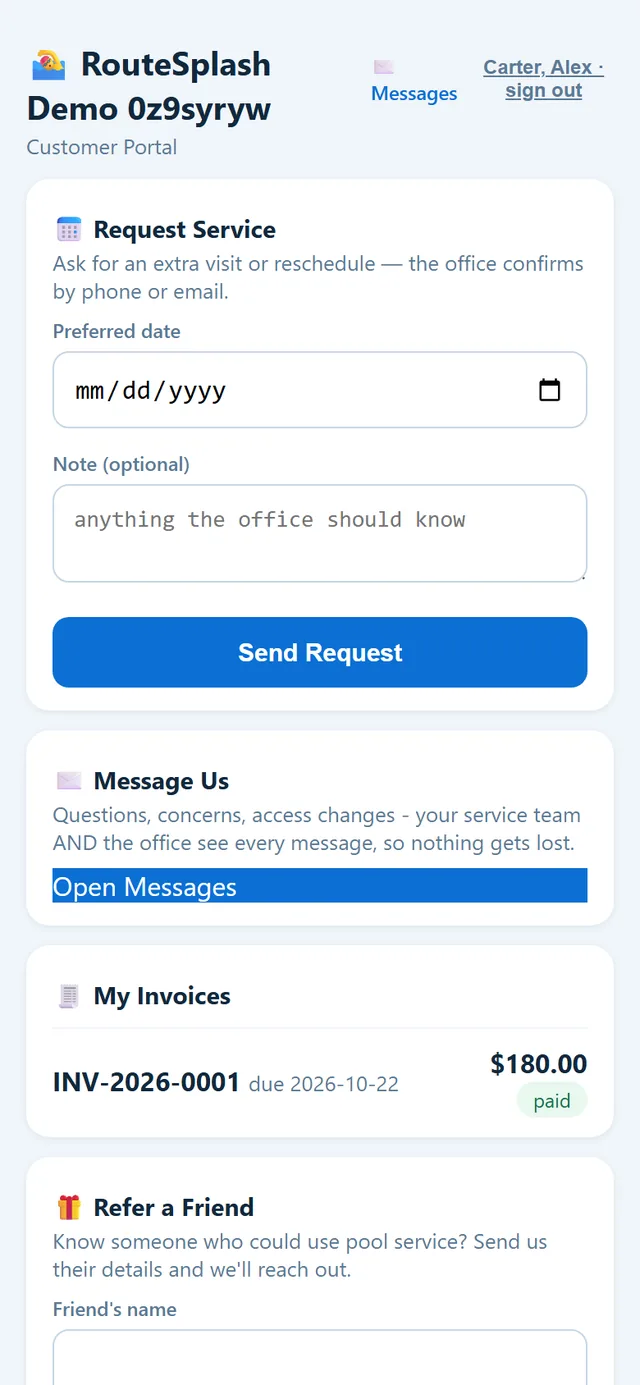
Homeowners sign in at routesplash.com/portal with their email and the access code you give them (the service report link also opens their portal). Their page shows, in order:
- Request service: an extra visit, a reschedule, or a problem. Problem requests ask a few quick questions, so your office gets a likely cause before anyone drives out.
- Message us: their messages reach the office and their tech, in the same Messages system your team uses.
- My invoices with Pay Online, and AutoPay setup.
- Refer a friend: they enter a friend's name and phone or email and tick that the friend agreed to be contacted. You track referrals under Requests.
- My Water (readings and what was added at each visit), service reports with photos, and the Pool Passport: pool size, equipment and ages, service history and warranty. Gate codes, internal notes and prices are never shown.
- Text messages on or off, in their own hands; your company's texting account and switches must also be enabled before a text can send.
The portal carries your company name at the top. Nothing on it mentions other companies.
11. Plans & billing
$49 (Starter) per month flat for up to 50 active pools, then $59 base + $30 per login + $0.25 per pool (Lean), then $0.75 per pool past 150, then $0.60 past 400 (Enterprise), self-serve with no cap. A one-login company that grows past 50 pools pays a $0.80 per pool add-on that ramps smoothly up to the Lean price, so there is no sudden jump. Every feature on every plan. Examples: 50 pools = $49/mo (Starter), 100 pools + 2 logins = $144/mo, 300 pools + 2 logins = $269/mo, 800 pools + 6 logins = $704/mo.
- Trial: 30 days with everything unlocked, up to 50 pools. When it ends the account becomes read-only until you pick a plan. Nothing is deleted.
- Limits: only adding a pool over your cap is blocked, with a clear message. Viewing, editing and deleting never are.
- Pause versus disable: pausing a recurring service plan stops new visits but keeps its pools in the active-pool billing count. Disabling the customer stops billing and frees the pool slot. The account has no separate $0.75/month paused-pool fee.
- Upgrade: app → Settings → Plan, payments & keys → View plans, or activate online. Secure Square checkout, cancel anytime. Techs see "ask your office".
12. Settings reference
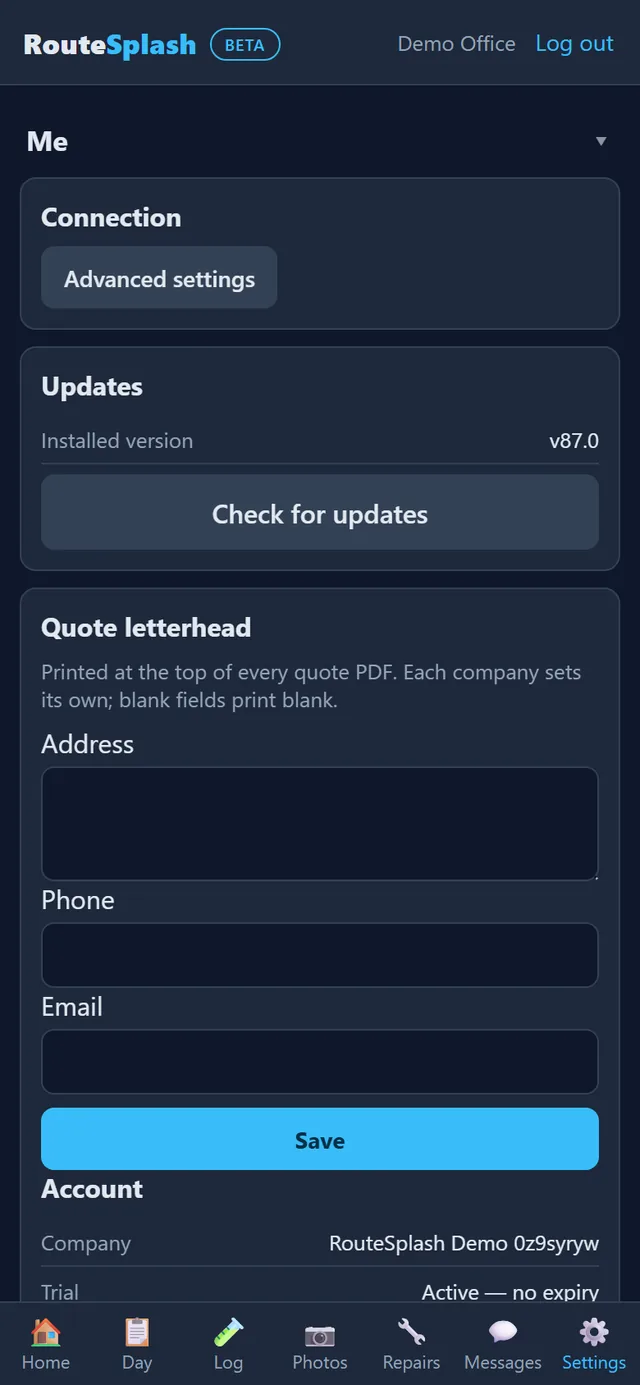
In the app, Settings is three groups. Tap a group's name to open it. The portal's Settings page covers the company side (section 3).
Me
Company by role
Plan, payments & keys Admin
13. FAQ & tips
What happens if a tech loses signal mid-route?
In the Android app, GPS check-ins, chemical logs, photos, service reports, truck weigh-ins and messages save on the phone and sync automatically when signal returns. The web app on iPhone or a computer needs a connection.
Can I fix a wrong chemical reading?
Chemical logs are permanent records. Enter the corrected reading as a new log; the original stays for the audit trail.
Can a tech see prices or billing?
Not by default. Prices, billing, profit and payroll belong to Manager-level roles and up. The Admin can give one person a single extra permission if needed.
How much does RouteSplash cost?
$49 (Starter) per month flat for up to 50 active pools, then $59 base + $30/login + $0.25/pool (Lean), then $0.75 per pool past 150 and $0.60 past 400 (Enterprise). Every feature on every plan. The free trial is 30 days.
Is the app in Spanish?
Yes. Each person picks English or Spanish in Settings, and voice entry understands both.
Does RouteSplash work on iPhone?
Yes, through the web app at routesplash.com/app, which you can add to the home screen. It needs a connection. The installable Android app also works offline. An iPhone app is coming soon.
Does RouteSplash store my customers' pool-equipment logins?
Only if you turn on optional 24/7 monitoring for that customer and the homeowner agrees. The login is stored encrypted, used only to read the equipment's status about once an hour, and erased when you revoke monitoring. Opening a customer's equipment app from a stop stores nothing.
Need help?
Use Settings → Help in the app, or email Makerspaceatx@gmail.com. RouteSplash is in beta until its full launch on December 5, 2026, so tell us when something looks wrong and we will fix it fast.